Obtain Force Field with DeePMD for LAMMPS
This tutorial demonstrates how to perform large-scale molecular dynamics simulation using Density Functional Theory (DFT), DeePMD, and LAMMPS. The workflow consists of the following steps:
- Perform ab-initio molecular dynamics using Quantum ESPRESSO Car-Parrinello (
cp.x) - Prepare Quantum ESPRESSO output files for DeePMD using
dpdata, and split the dataset into training and validation sets - Train the DeePMD model and freeze the training results
- Transform the Quantum ESPRESSO structure into LAMMPS format
- Perform classical molecular dynamics using LAMMPS with the potential and force fields predicted by DeePMD
1. Create the structure
A new structure is created from scratch using the Materials Designer. Navigate to the Materials page from the left sidebar and click create new material. The default structure can be cloned as a starting point.
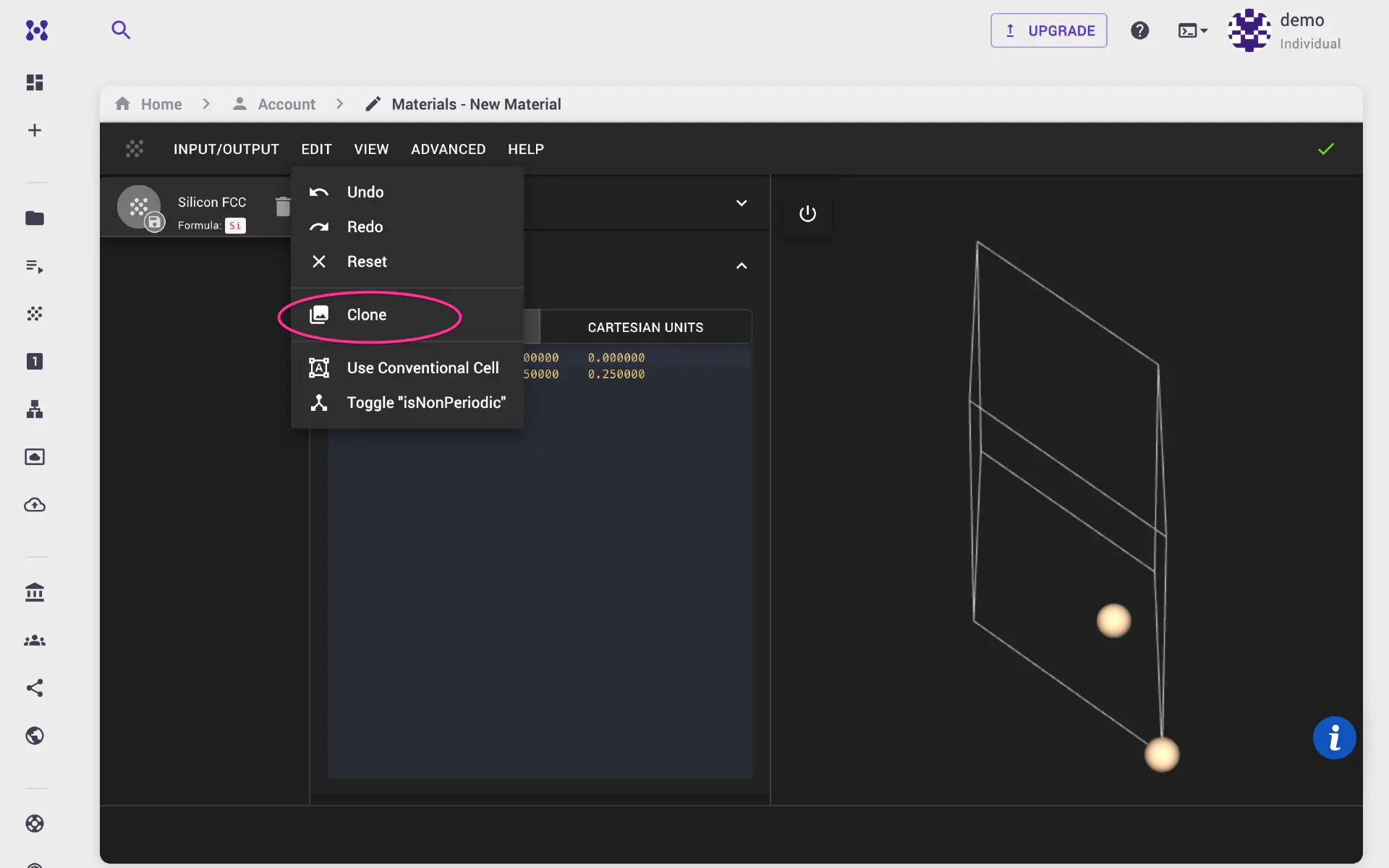
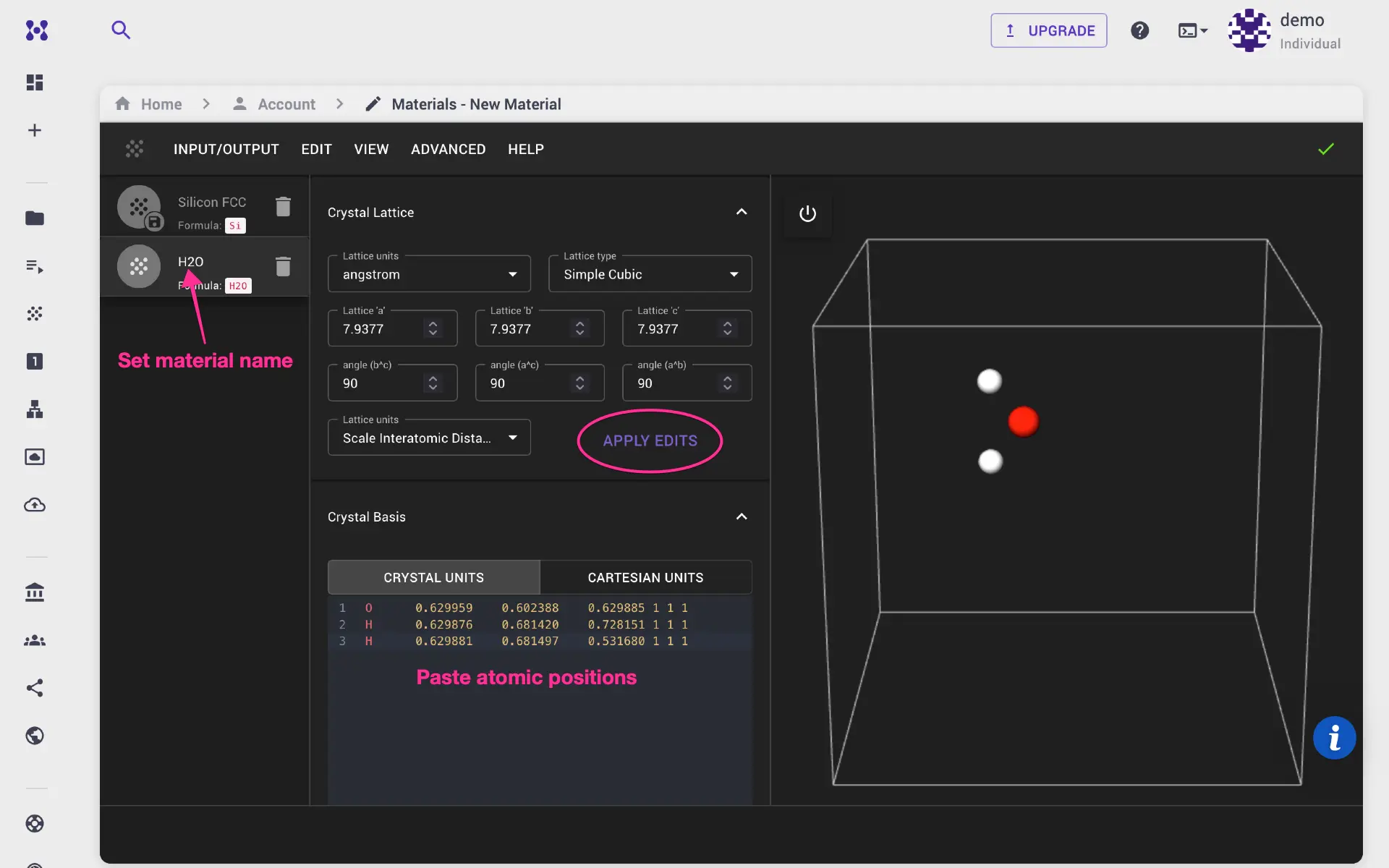
This example uses a water molecule with simple cubic structure. Set lattice parameters and atomic positions, then click Apply Edits. Navigate to the Input/Output menu and save the structure. Alternatively, CIF or POSCAR structure files can be imported.
2. Create the workflow
2.1. CP calculation
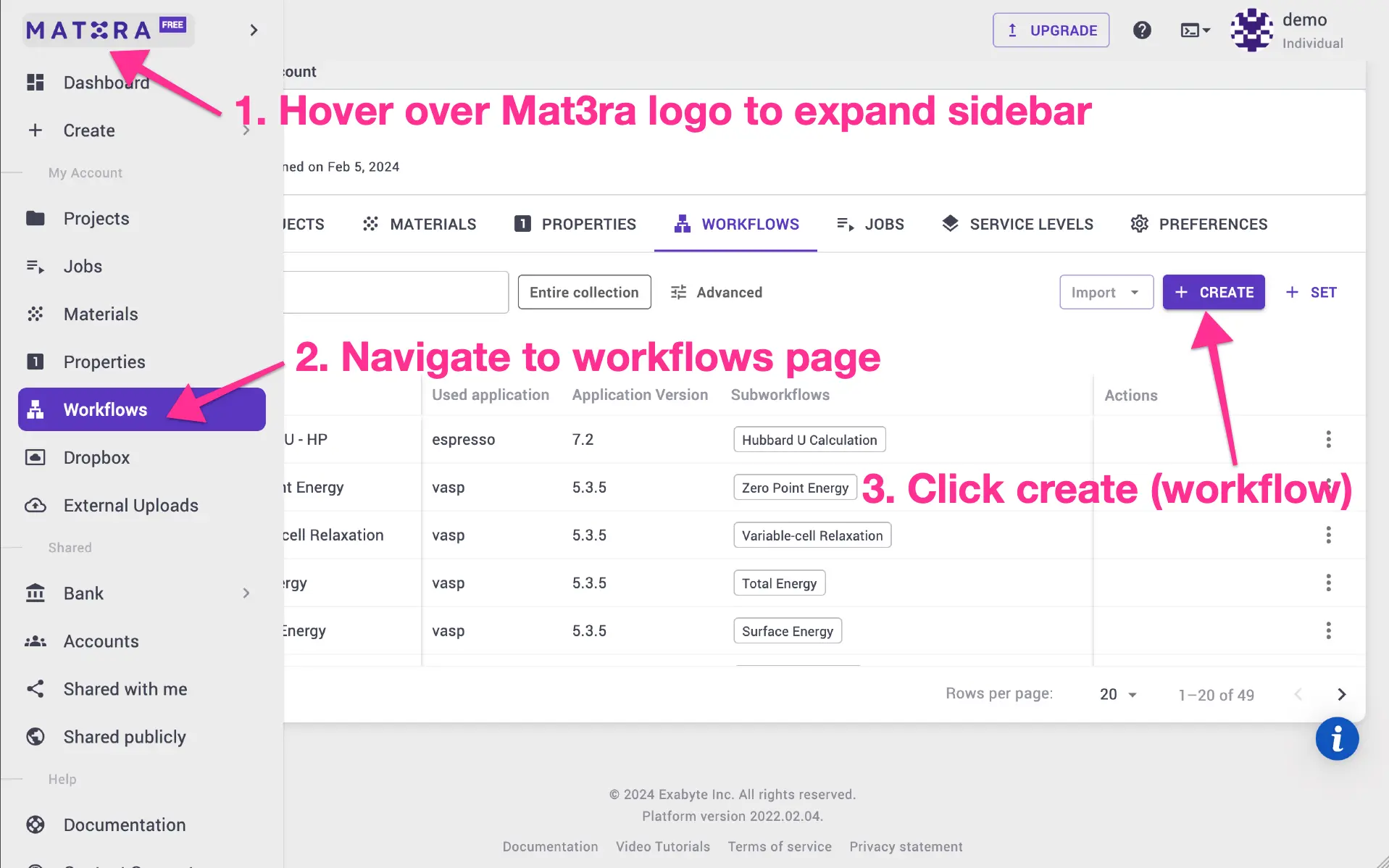
The first step performs ab-initio molecular dynamics using Quantum ESPRESSO Car-Parrinello (cp.x). Navigate to the workflows page and click create new workflow.
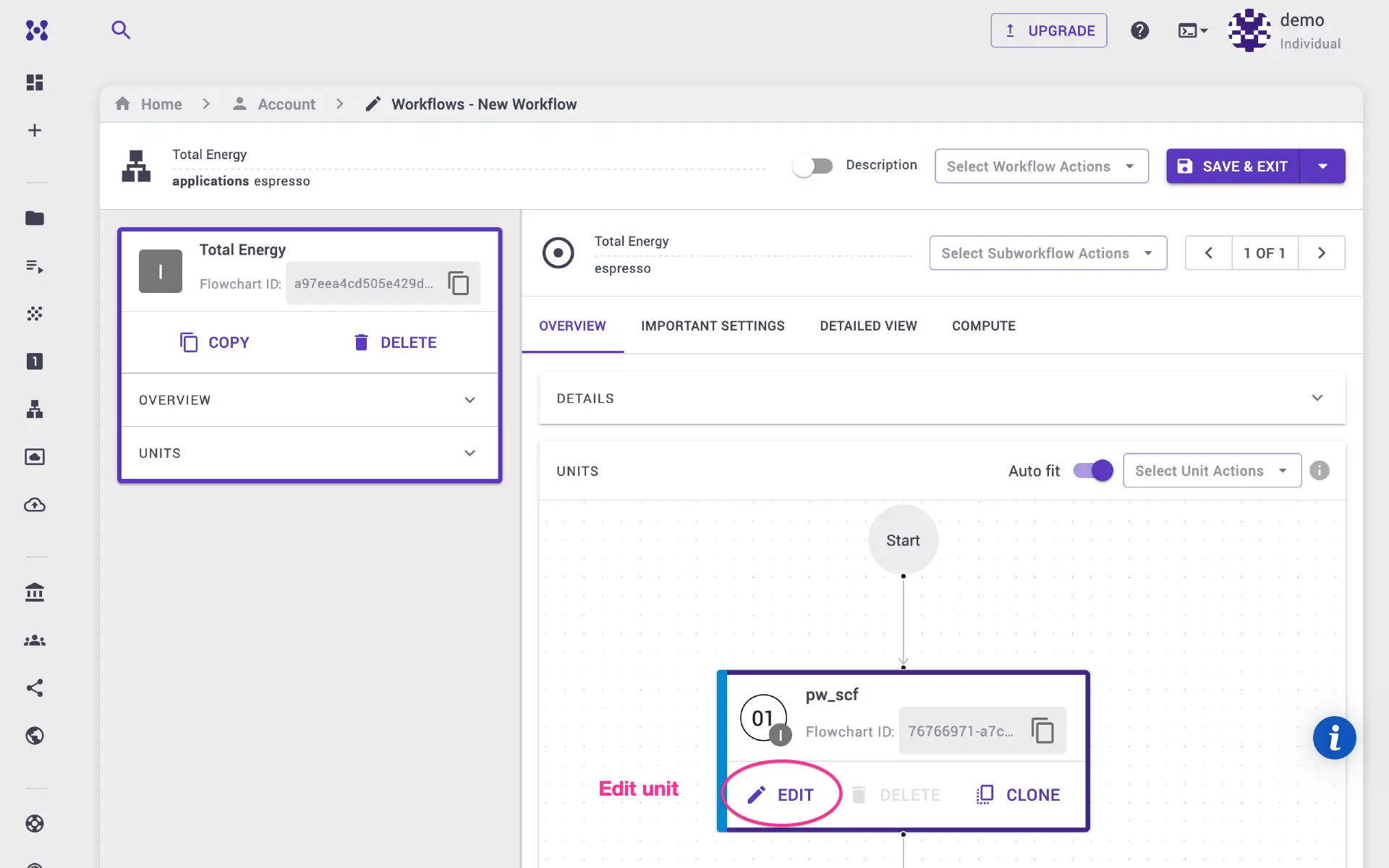
Click Edit on the unit. In the unit modal, expand the details pane and select cp.x as the executable. Set prefix and the unit name to cp so that output files share the same base name (e.g., cp.out, cp.for).
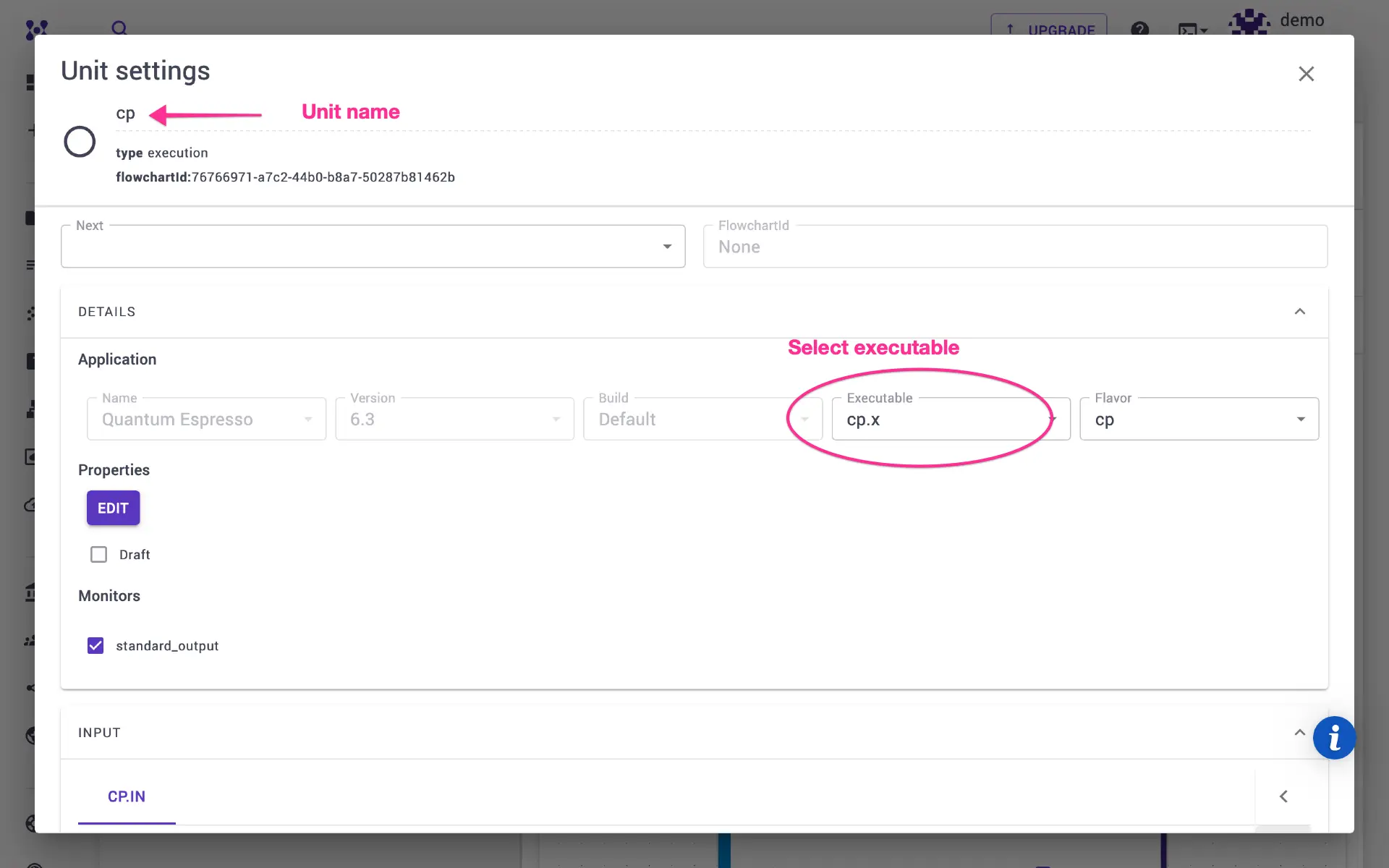
CP parameters such as the number of steps and time step can be set in the Important Settings tab. Additional parameters can be modified directly in the template. Close the unit modal and set the Quantum ESPRESSO version (e.g., 7.3) and build (e.g., GNU).
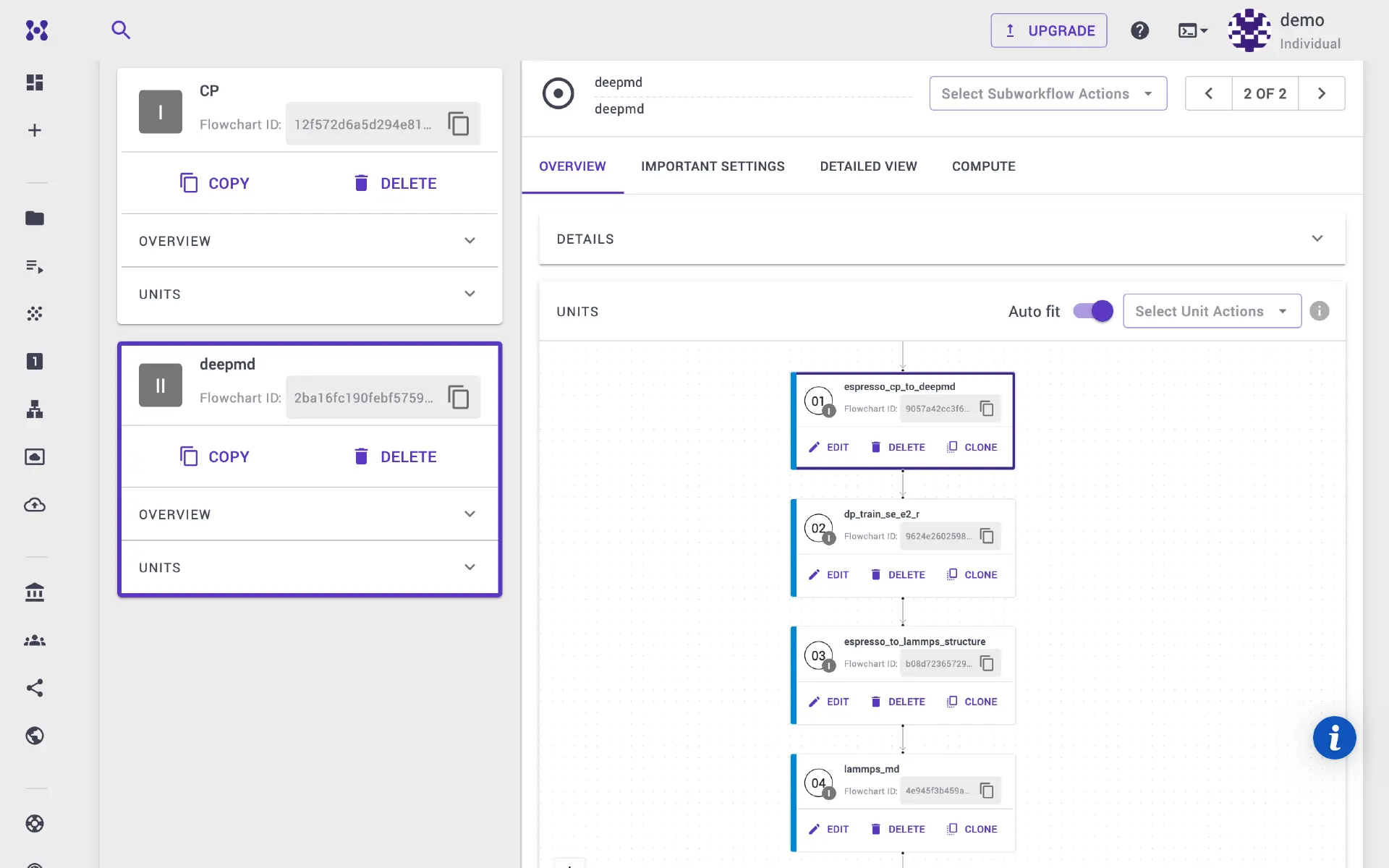
A new subworkflow is then added with the DeePMD application selected.
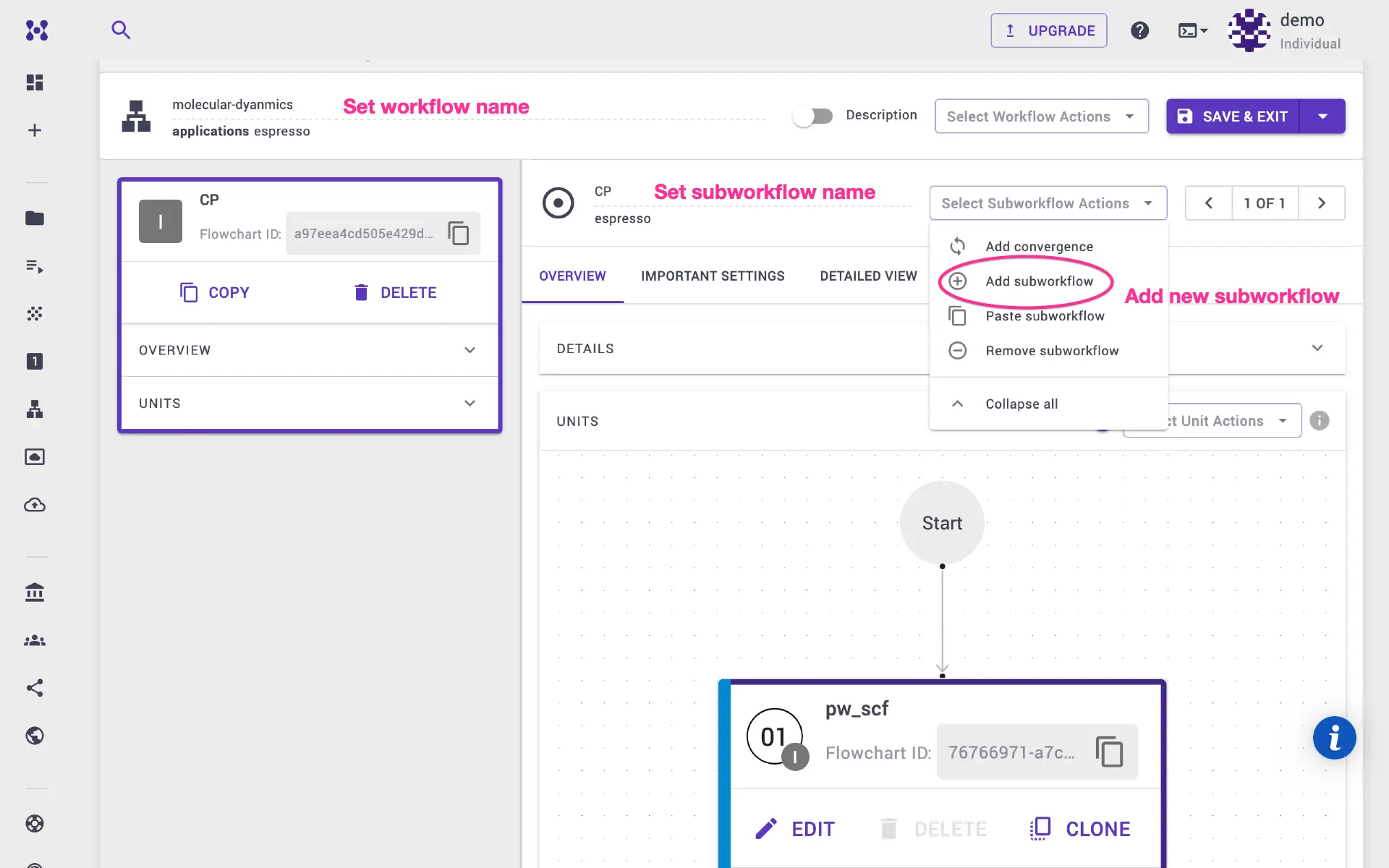
2.2. Prepare data sets for DeePMD
A Python script using dpdata loads the Quantum ESPRESSO output files from the CP calculation. Add a unit to the DeePMD subworkflow.
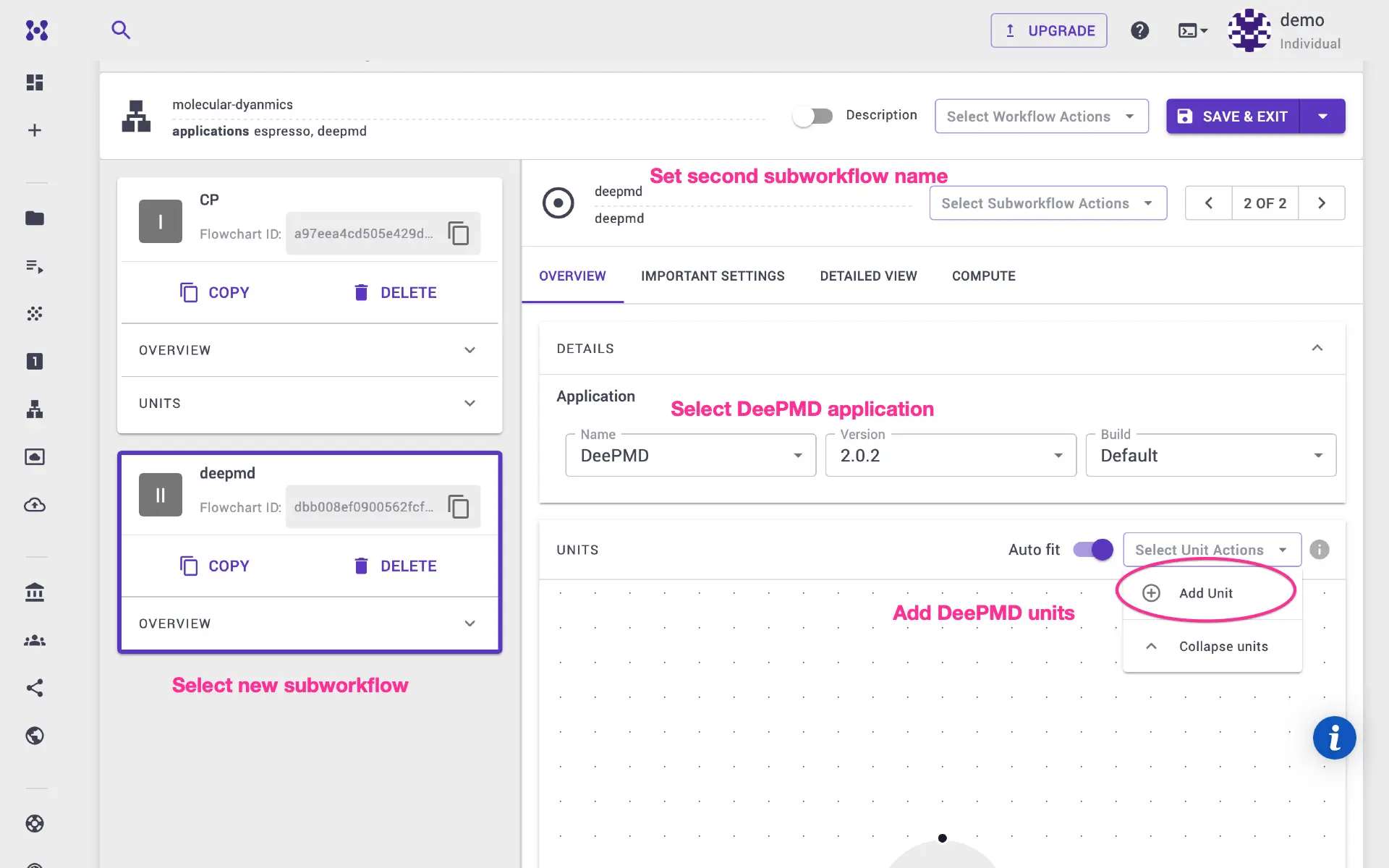
Select python as the executable and espresso_cp_to_deepmd as the flavor.
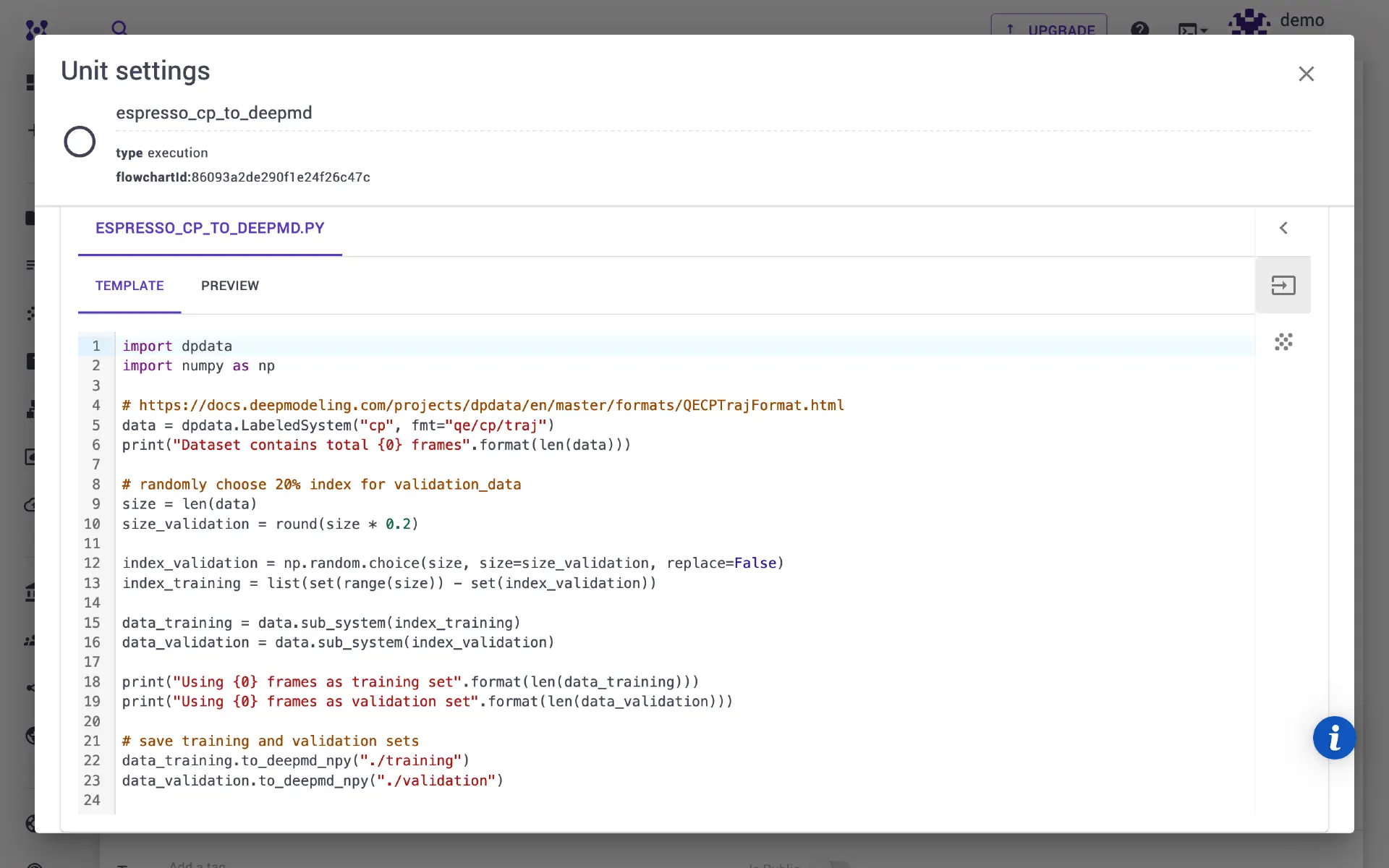
The molecular dynamics steps are split into training and validation sets (80% and 20%, respectively). The ratio can be adjusted by modifying the Python script directly in the unit modal.
2.3. Train the DeePMD model
Append another execution unit to the DeePMD subworkflow. Select dp as the executable and configure the descriptor and model parameters. After training, the output is saved to graph.pb.
2.4. Prepare the LAMMPS structure
Add another execution unit with the python executable and espresso_to_lammps_structure flavor. This script uses dpdata to convert the Quantum ESPRESSO input from step 2.1 into LAMMPS format. The structure can be extended, built into a supercell, or hardcoded and saved to system.lmp.
2.5. LAMMPS calculation
Add the final unit and select lmp as the executable. LAMMPS parameters can be adjusted in the in.lammps input template. The DeePMD pair style is used, and the output is written to system.dump.
3. Create and submit the job
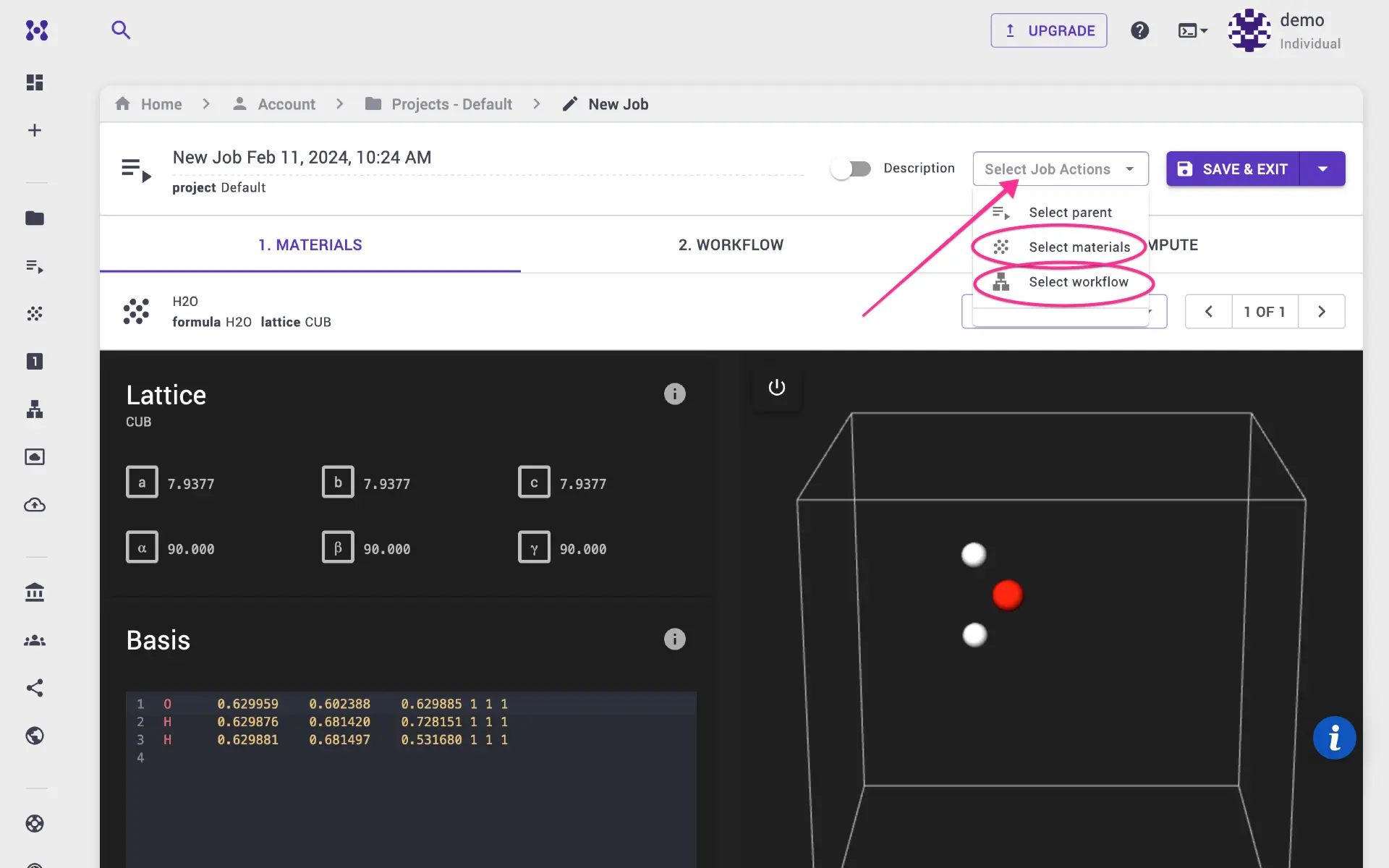
Navigate to the Jobs page from the left sidebar and click create new job. Select the H₂O structure created in step 1 and the molecular dynamics workflow from step 2. Under the Compute tab, adjust parameters such as queue, number of nodes, and processors. Submit the job for execution. After completion, output files are available under the Files tab. A Jupyter Notebook session can be launched for further analysis.
4. Video walkthrough
The animation below demonstrates the complete workflow.