DFT+U and Hubbard Parameter Calculation in Quantum ESPRESSO
This tutorial demonstrates how to perform a DFT+U calculation followed by the computation of Hubbard parameters from first principles, using Quantum ESPRESSO on the Mat3ra platform.
1. Create the DFT+U workflow
A self-consistent DFT+U calculation (using pw.x) is a prerequisite for the Hubbard parameter calculation (using hp.x).
1.1. Add the pw.x unit
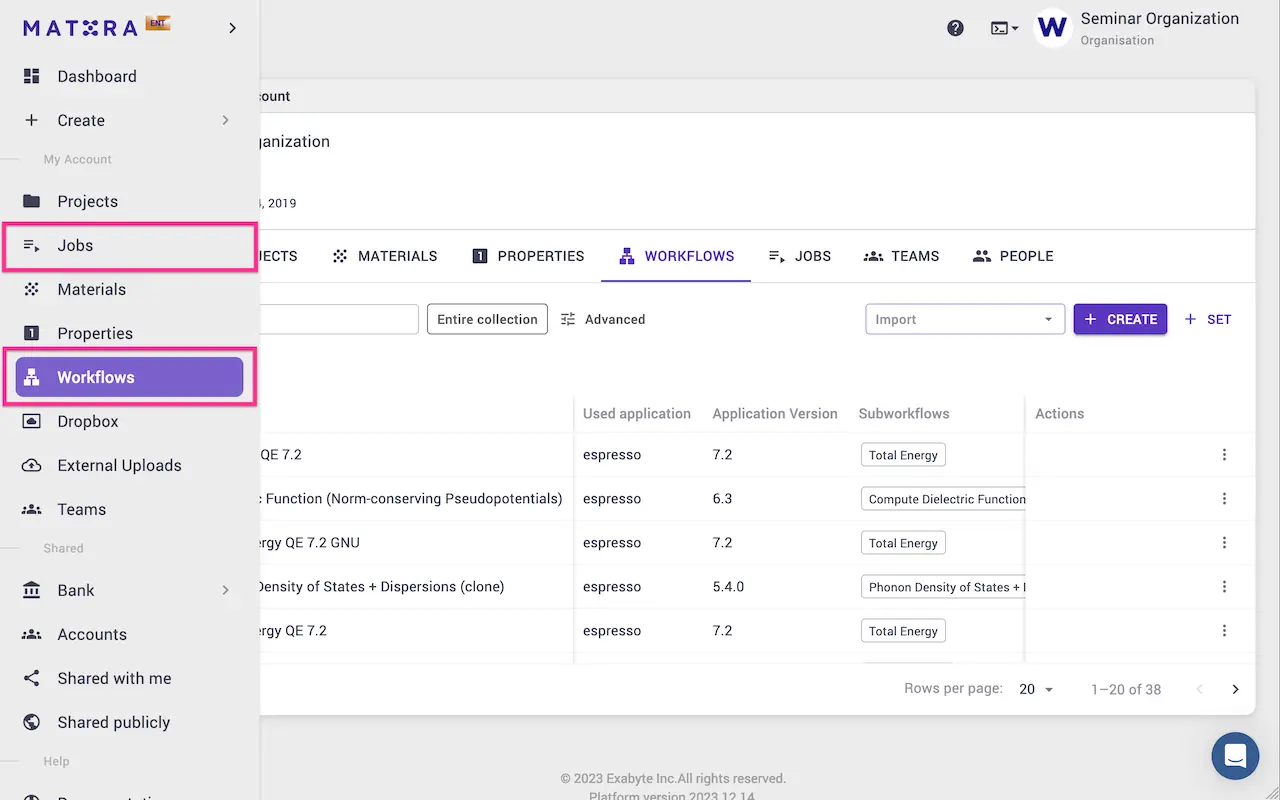
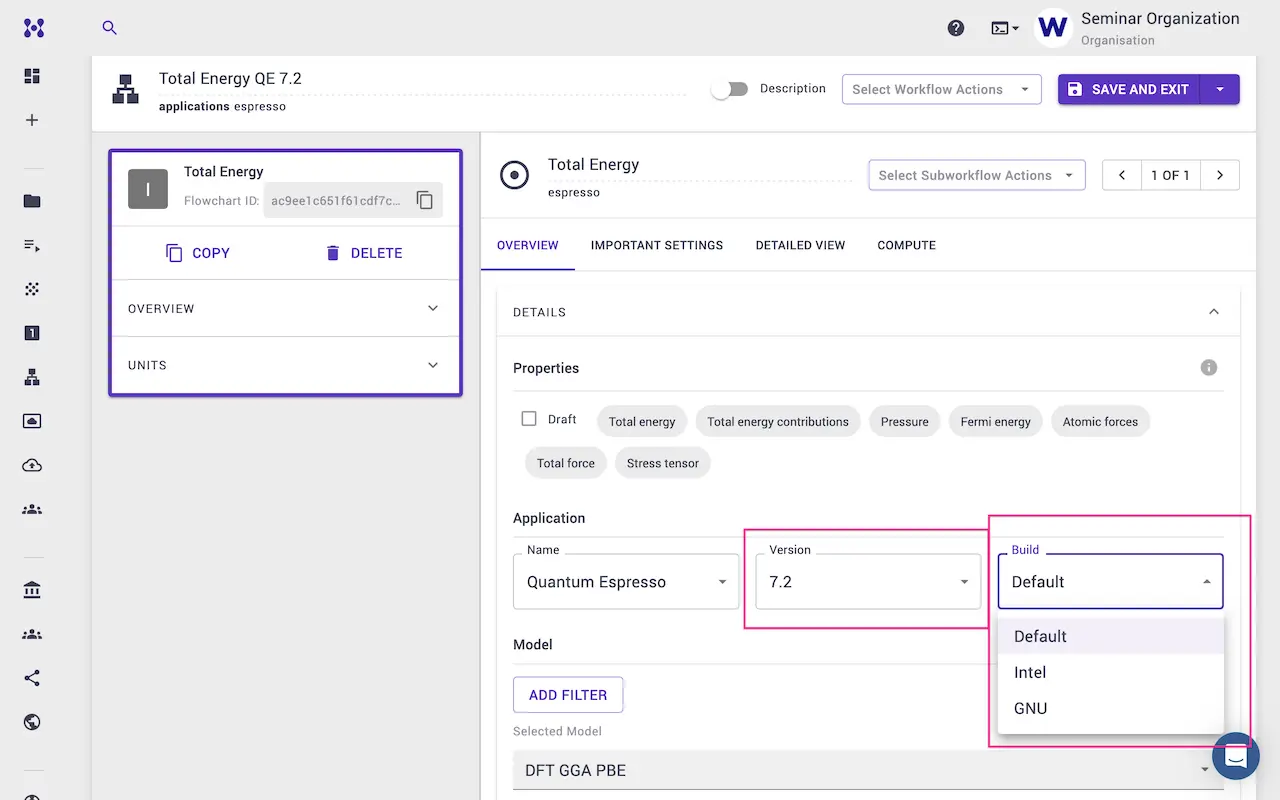
Navigate to the workflows page from the sidebar and create a new workflow. Expand the details section and select Quantum ESPRESSO version 7.2 from the drop-down.
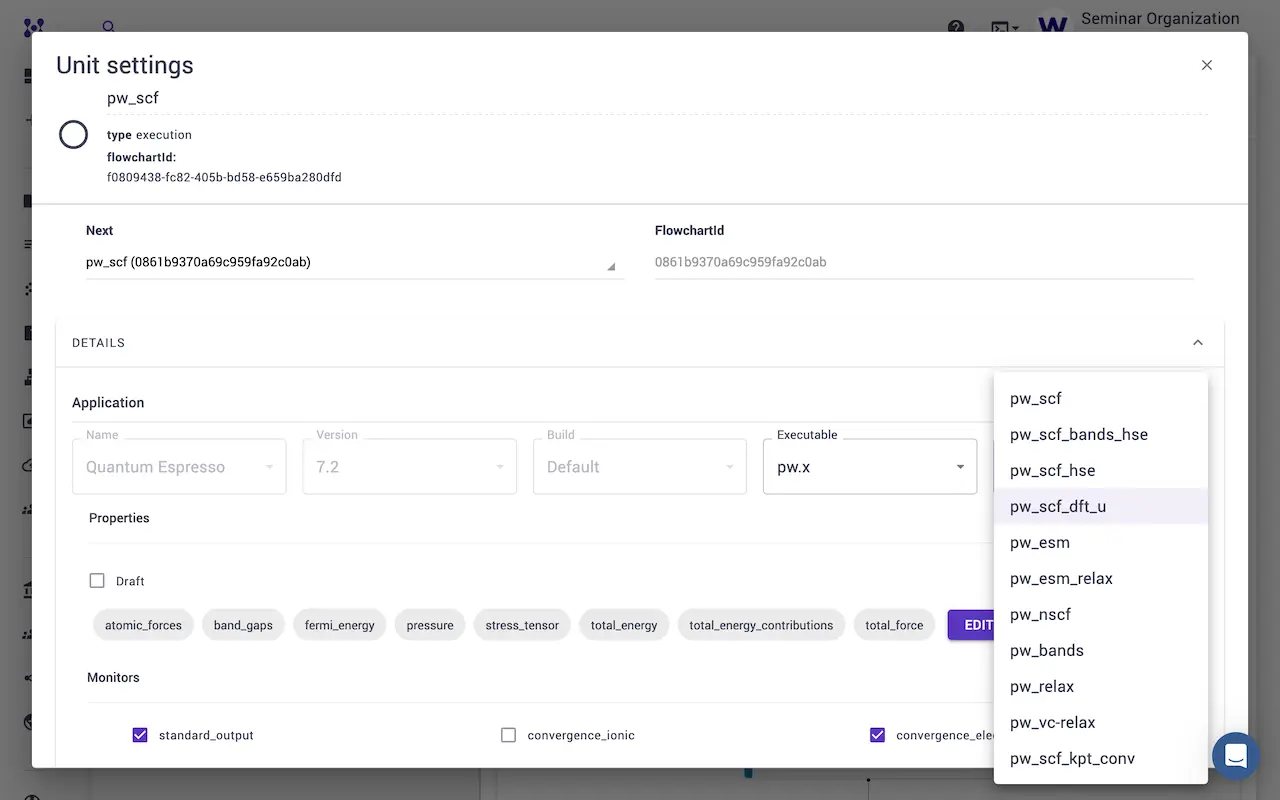
Click the Edit button on the default pw_scf workflow unit. Expand the details pane in the unit modal and select the pw_scf_dft_u flavor/
DFT+U syntax versions
This tutorial follows the DFT+U syntax and method introduced in Quantum ESPRESSO version 7.1. The pw_scf_dft_u template is only available in version 7.1 or above. For the legacy syntax, select Quantum ESPRESSO version 7.0 or below and use pw_scf_dft_u_legacy.
1.2. Add the hp.x unit
Hubbard parameters can be obtained from first principles using the hp.x implementation of Linear Response theory 1.
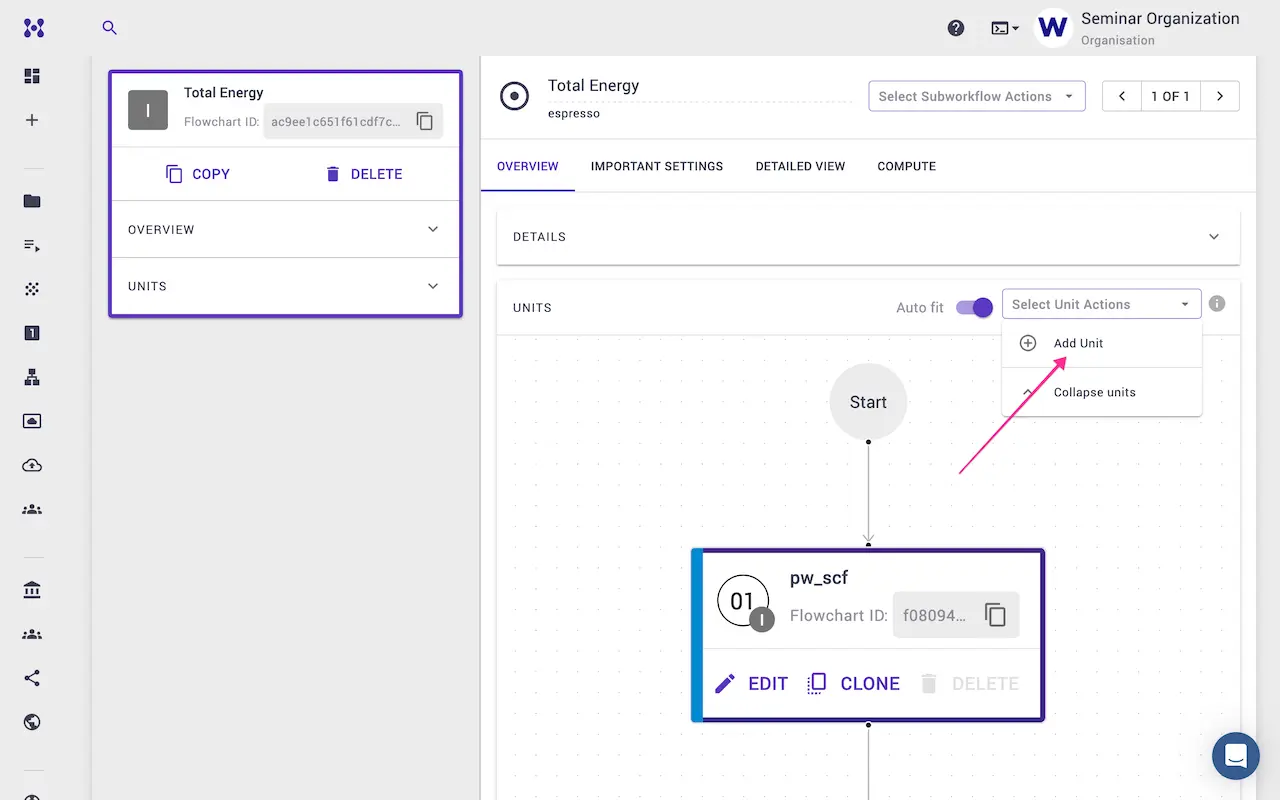
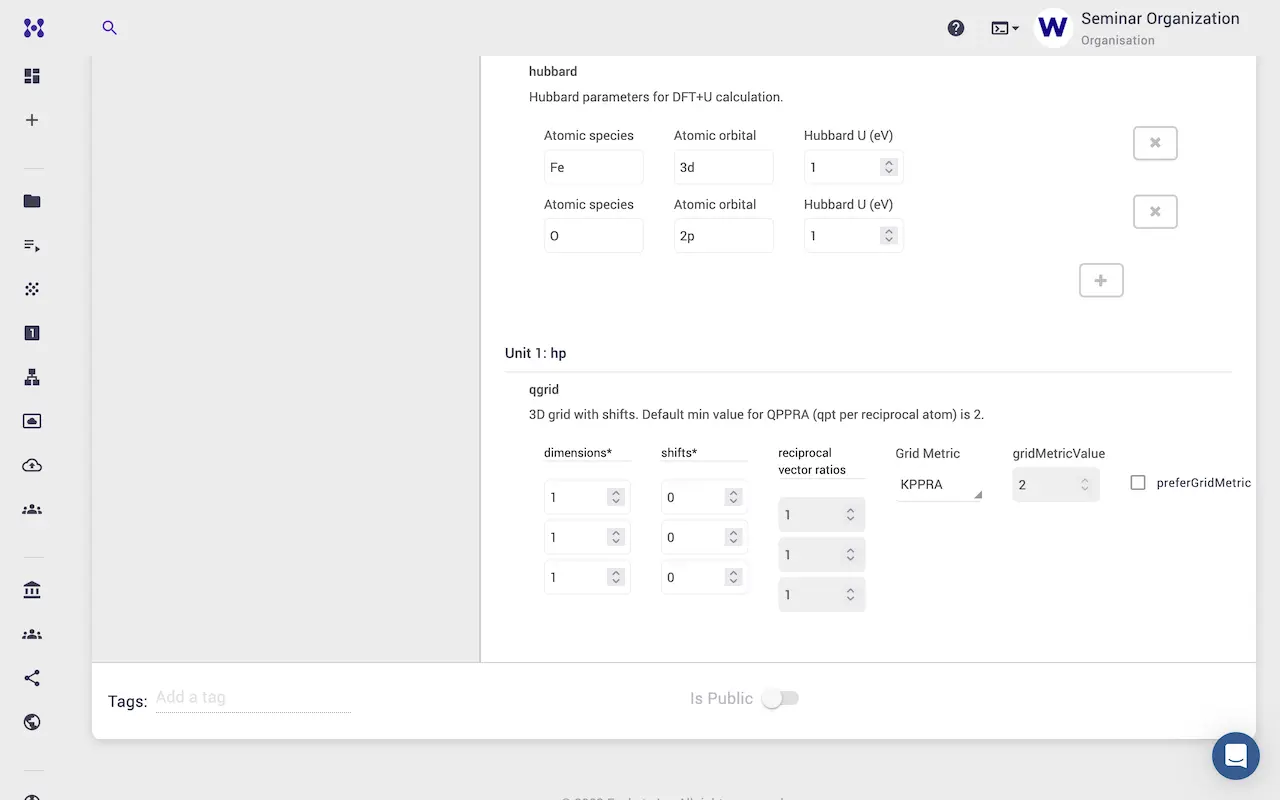
Add a new execution unit to the workflow by clicking the edit unit button on the second unit and selecting the hp.x executable. The q-grid for hp.x can be modified in the Important Settings tab.
Bank workflow available
A pre-built Hubbard U - HP bank workflow incorporating both steps above is available. Navigate to the Bank Workflows page via the left sidebar, search for Hubbard U - HP, and copy it to the account.
2. Create and submit the job
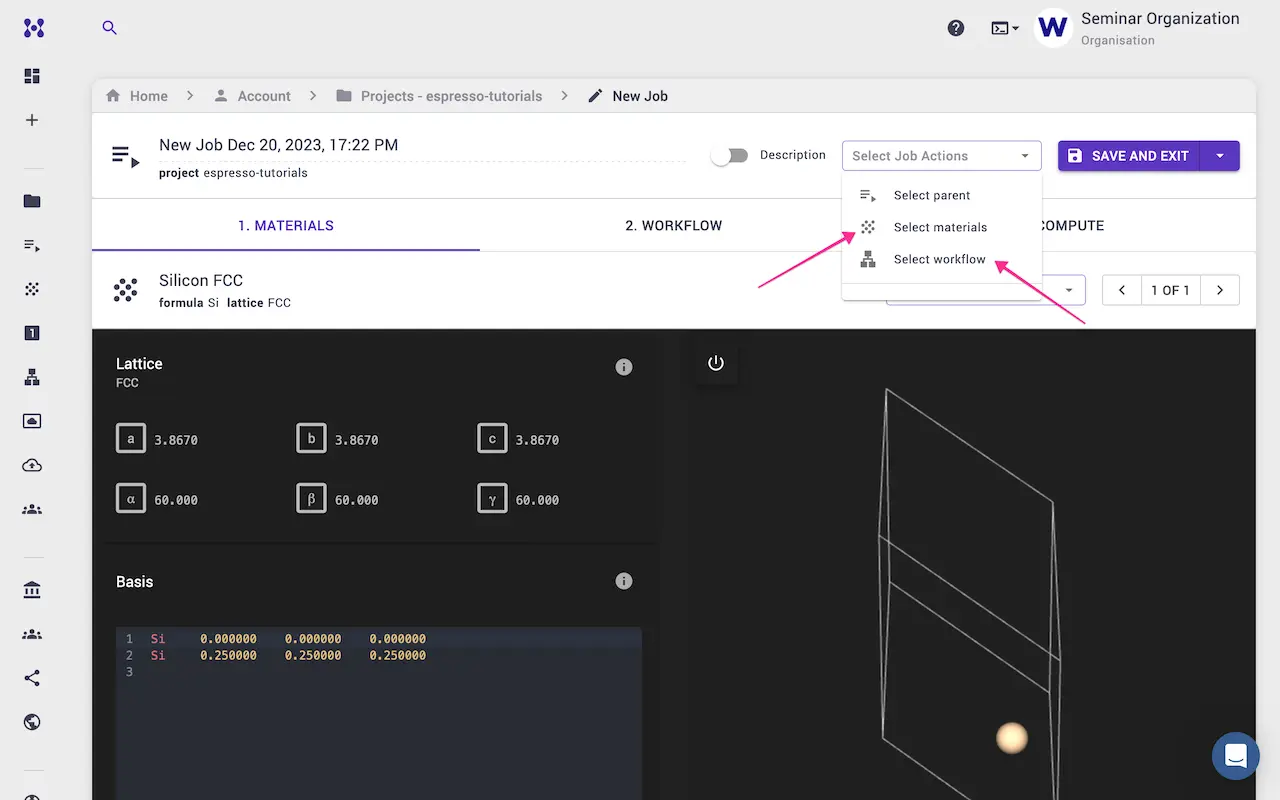
Navigate to the jobs page via the sidebar menu and create a new job. Then:
- Select the material (FeO in this example — new materials can be imported from banks or uploaded as structure files).
- Select the Hubbard workflow created in the previous step.
2.1. Configure the Hubbard card
Navigate to the Important Settings tab under the workflow and scroll down to the hubbard section. Hubbard U values specific to atomic species and orbital (Hubbard manifold) can be specified here. Rows can be added or deleted as needed.

2.2. Set compute parameters
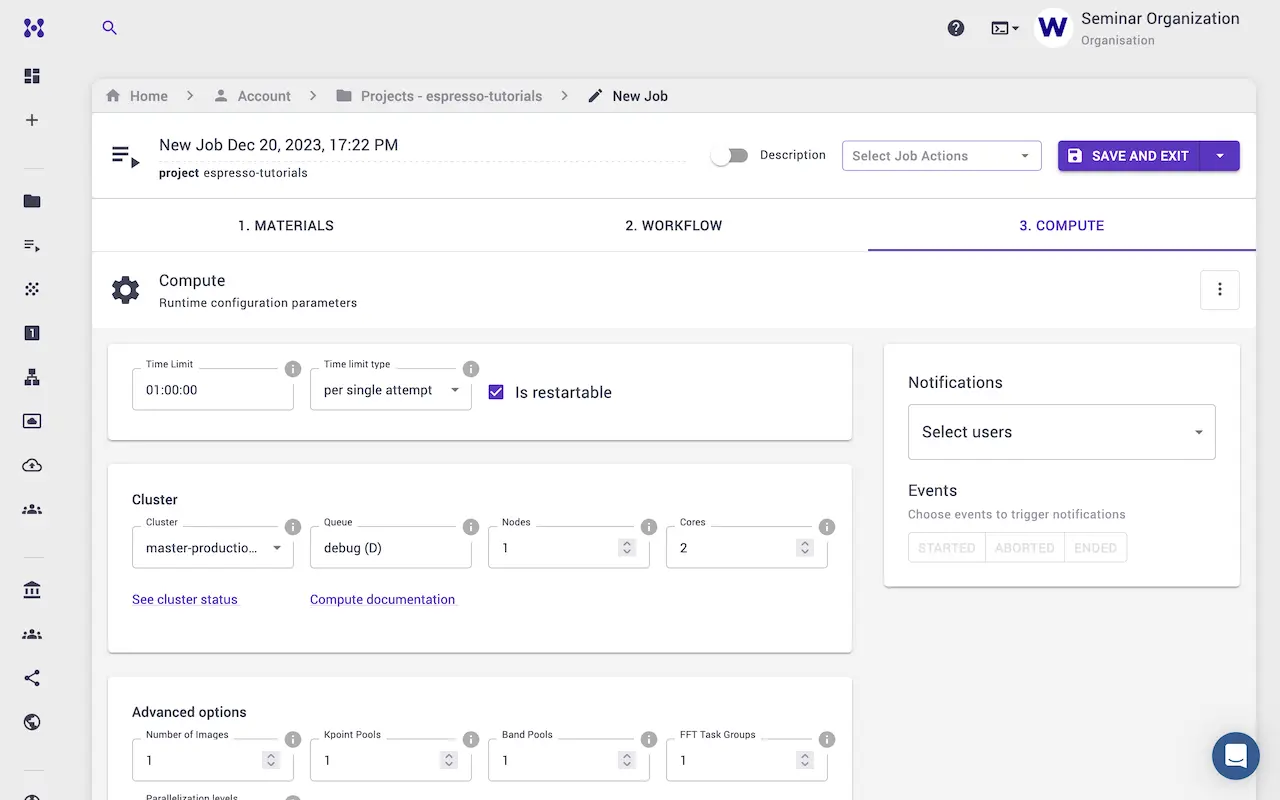
Navigate to the Compute tab and select the number of processors and other compute parameters.
3. Examine the results
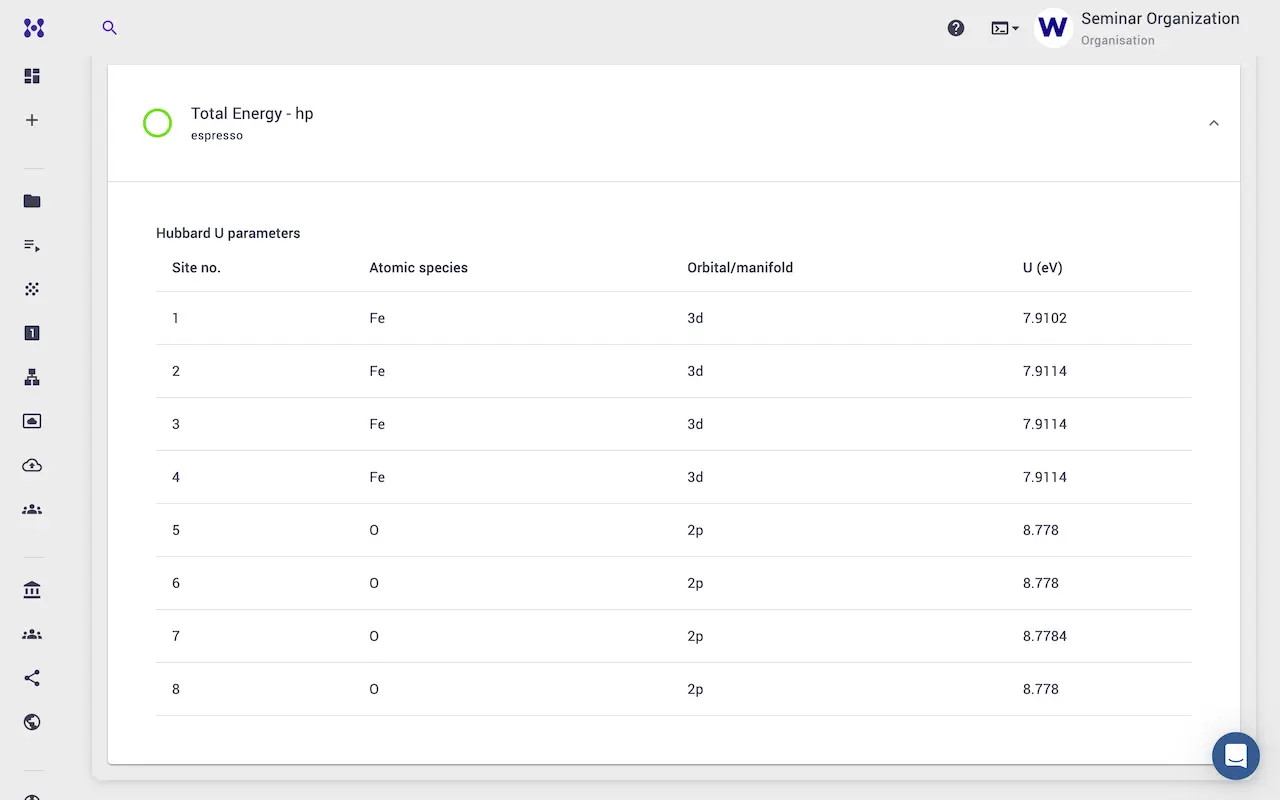
Once the job completes, the calculated Hubbard U values are displayed in the Results tab.
4. Video walkthrough
The animation below demonstrates the full calculation workflow.