Fermi Surface Calculation
This tutorial explains how to calculate and visualize the Fermi surface for metallic copper (Cu) in its equilibrium face-centred cubic (fcc) Bravais Lattice, based on Density Functional Theory (DFT). Quantum ESPRESSO is used as the simulation engine.
Quantum ESPRESSO version
This tutorial applies to Quantum ESPRESSO versions 5.2.1, 5.4.0, 6.0.0, 6.3, and later.
1. Create a job and select the material
Start by creating a new Job through opening the Job Designer Interface. The fcc crystal structure of copper should then be selected and added to the new job, assuming the structure is already present in the account-owned collection of materials.
2. Select the workflow
Workflows for calculating the band structure with Quantum ESPRESSO can be imported from the Workflows Bank into the account-owned collection. The workflow can then be selected and added to the job being created.
3. Set sampling in reciprocal space
A high k-point density is critical for resolving the details of the Fermi surface plot.
The band structure workflow is composed of two units. The first unit performs a self-consistent field (SCF) calculation of the energy eigenvalues and wave functions. The second unit performs a non-self-consistent calculation using the wave functions and charge density from the first step.
The k-point grid is set to 18 × 18 × 18 in the first workflow unit. The validity of this grid size for yielding meV-level accuracy can be verified by performing a convergence study.
4. Submit the job
Before submitting the job, the Compute tab of Job Designer should be reviewed to verify the compute parameters. Copper is a small structure, so 4 CPUs and 1 minute of calculation runtime are sufficient.
5. Examine the results
Once both unit computations complete, the Results tab of Job Viewer displays the final total energy, the Fermi energy, and additional information about each execution unit.
The actual input and output files can also be browsed under the Files Tab of Job Viewer.
6. Generate the Fermi surface file
Once the simulation is complete, a Web Terminal session should be opened to create the file needed for Fermi surface visualization. The fs.x code, part of the Quantum ESPRESSO distribution, generates a .bxsf file that can be plotted using XCrySDen.
First, navigate within the Command Line Interface into the working directory containing the simulation files. Then, create a new input file named fs.in using any command-line text editor (e.g. nano) with the following contents:
1 2 3 4 | |
Next, load the appropriate Quantum ESPRESSO module and run the fs.x executable:
1 2 | |
After execution, a new file called __prefix__fs.bxsf appears in the current working directory.
Close the Web Terminal session to return to the Web Interface.
7. Visualize the Fermi surface
Open a Remote Desktop Connection to run graphical visualization software. Instructions for opening the Remote Desktop are available here.
Find and open the XCrySDen application. Within XCrySDen, navigate to File → Open Structure → Open BXSF, then browse to the directory where __prefix__fs.bxsf was created.
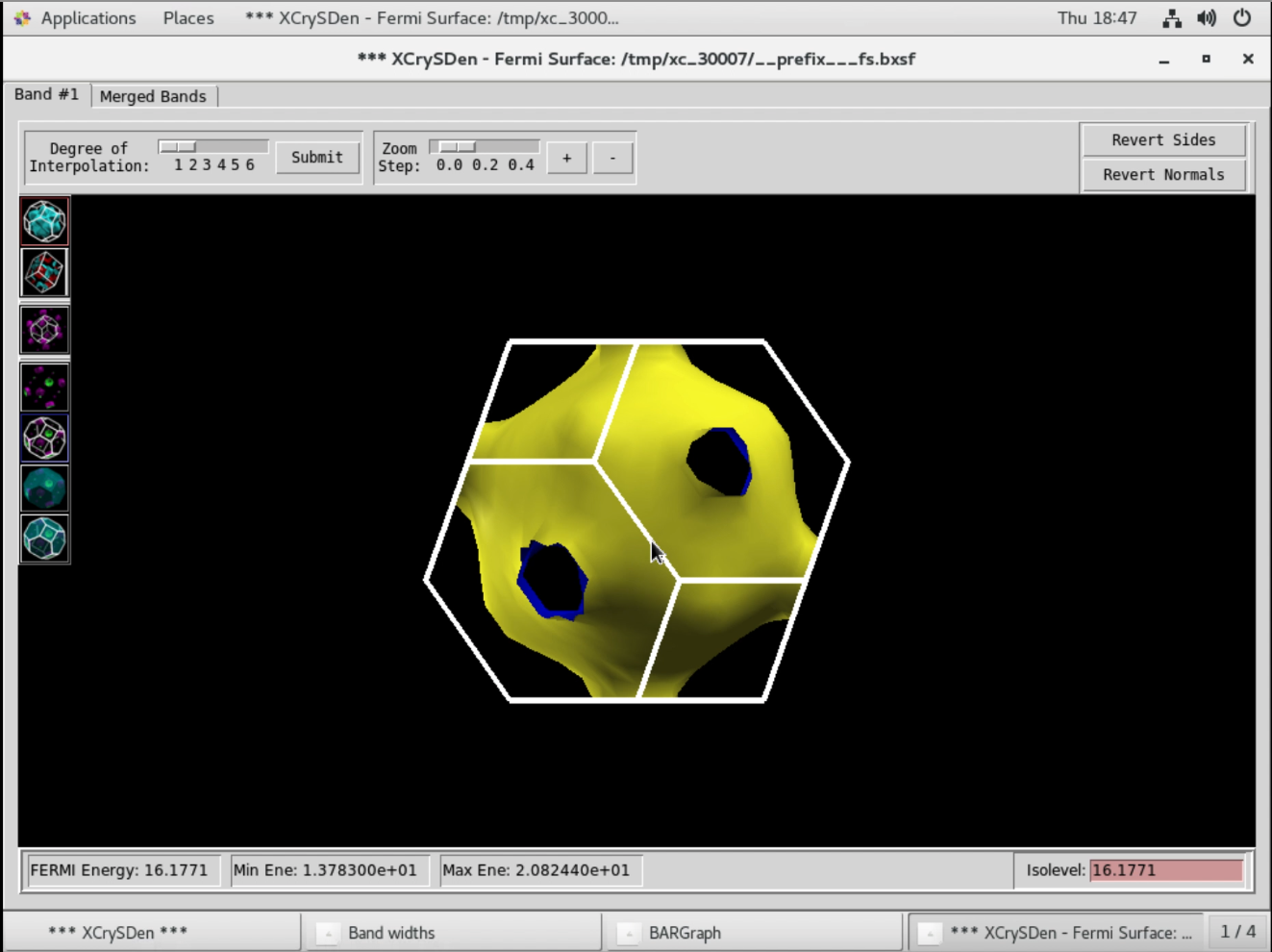
8. Video walkthrough
The animation below demonstrates the creation, execution, and visualization of a Fermi surface calculation on crystalline copper using Quantum ESPRESSO.