Spin-Magnetic Band Structure Calculation in Quantum ESPRESSO
This tutorial demonstrates how to perform a spin-polarized band structure calculation using Quantum ESPRESSO on the Mat3ra platform.
1. Specify the material structure
In order to perform a spin-magnetic calculation, the material structure must first be defined. A new material can be created using the Materials Designer, or structure files (e.g. CIF or VASP POSCAR format) can be uploaded. Materials may also be imported from the Materials Bank.
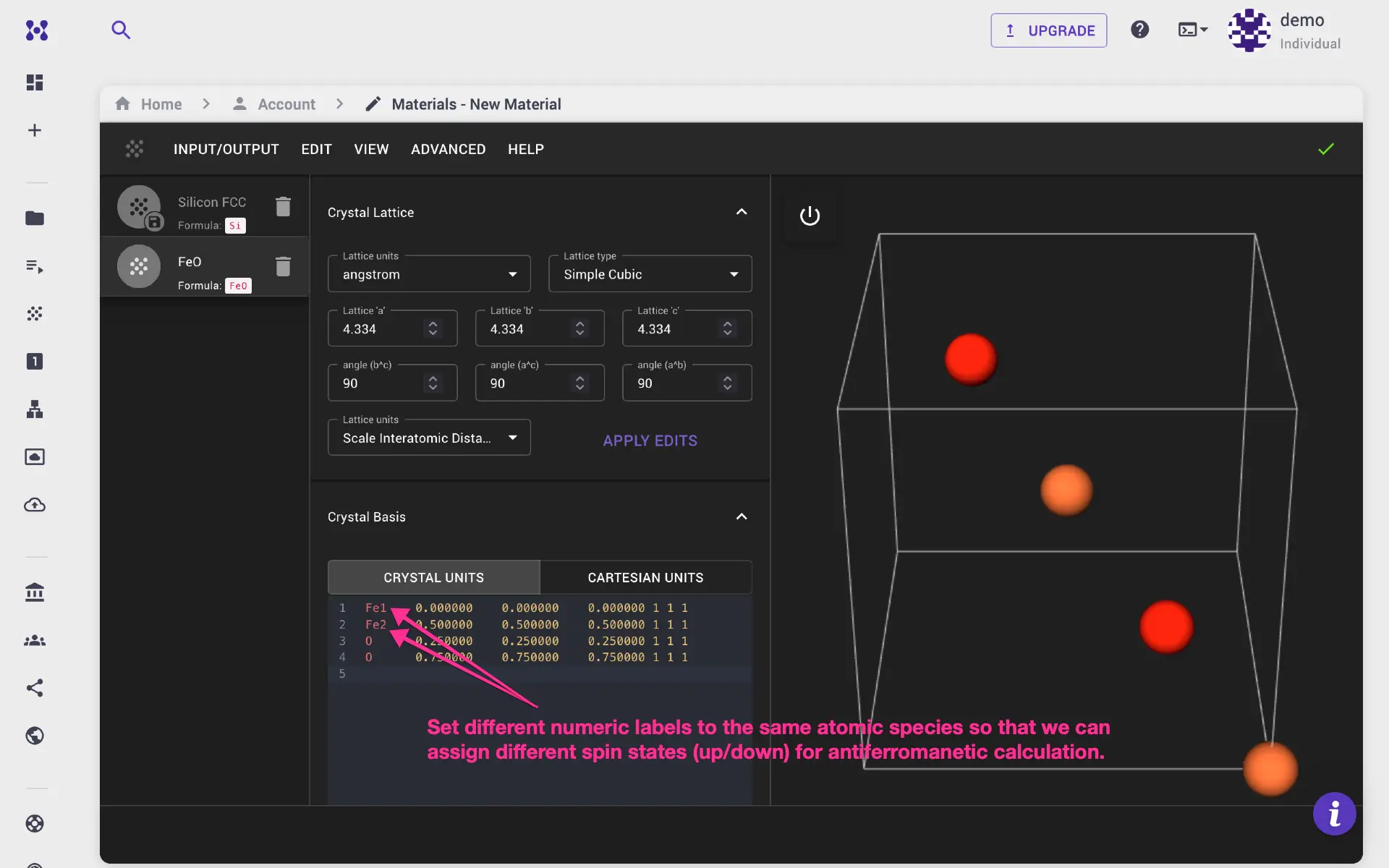
If different spin states (up or down) need to be assigned to the same atomic species, numeric labels must be added to the atomic symbols. In this example, the unit cell contains two Fe atoms labeled Fe1 and Fe2.
2. Create the workflow
The workflow for spin-magnetic band structure calculation consists of three steps:
- Self-consistent field (SCF) calculation
- Bands (NSCF) calculation along a specific k-path
- Post-processing of the bands calculation
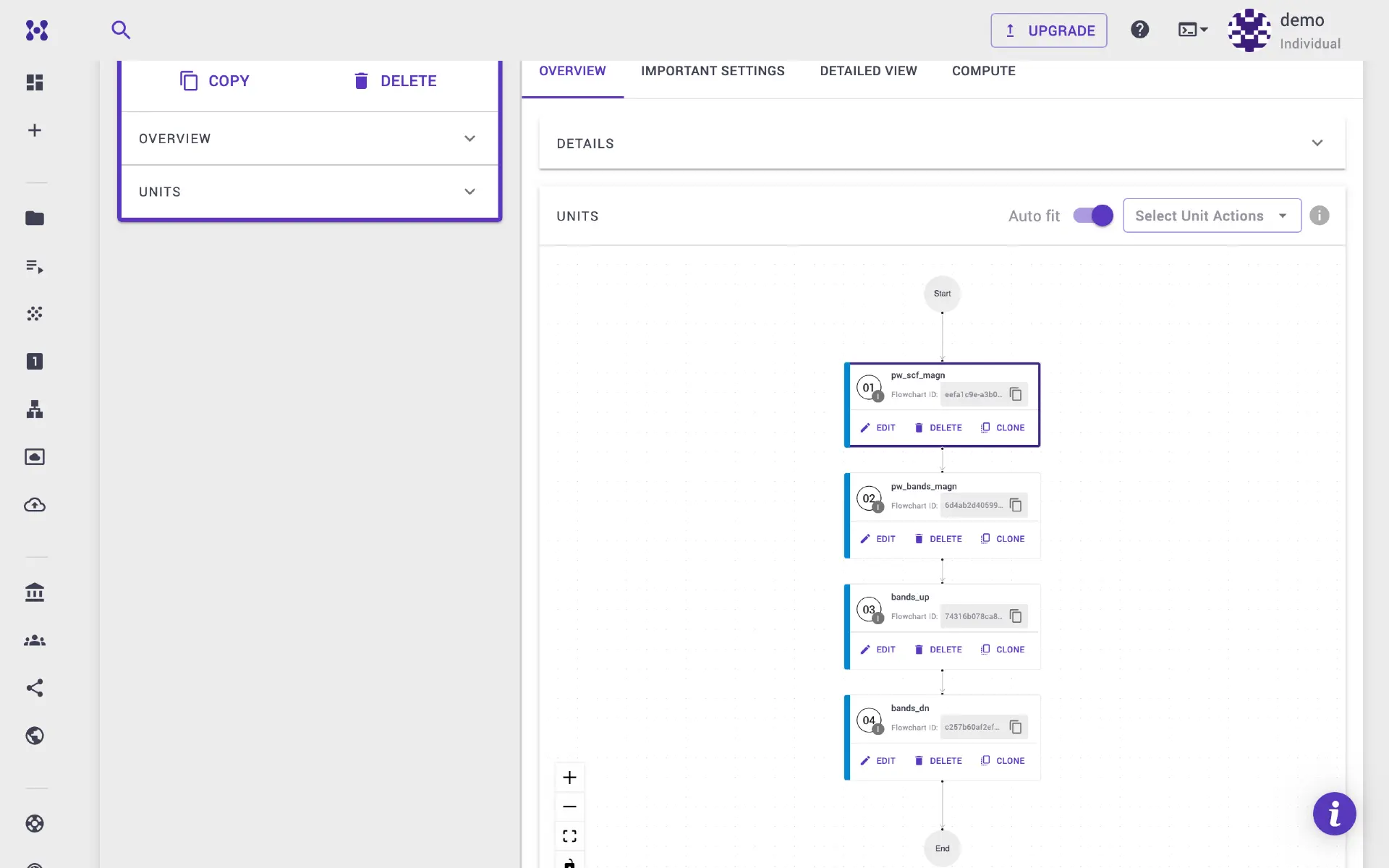
Bank workflow available
The desired workflow can also be imported from the workflow bank.
2.1. Configure the SCF unit
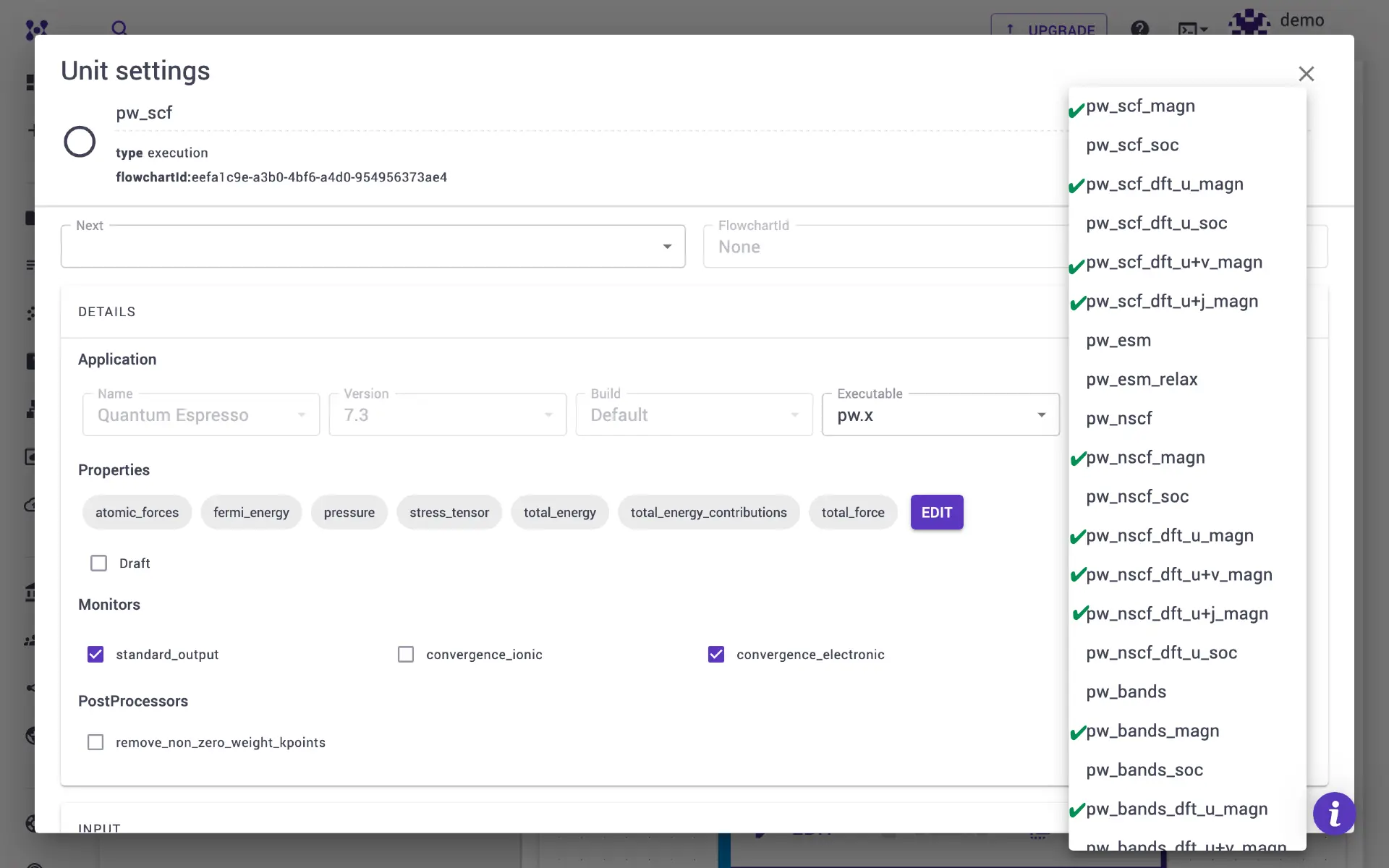
Several templates are available for spin-magnetic calculations. Select pw_scf_magn for a standard spin-polarized SCF. Templates for DFT+U, DFT+U+V, and DFT+U+J in conjunction with spin-polarization are also available.
2.2. Configure the bands calculation unit
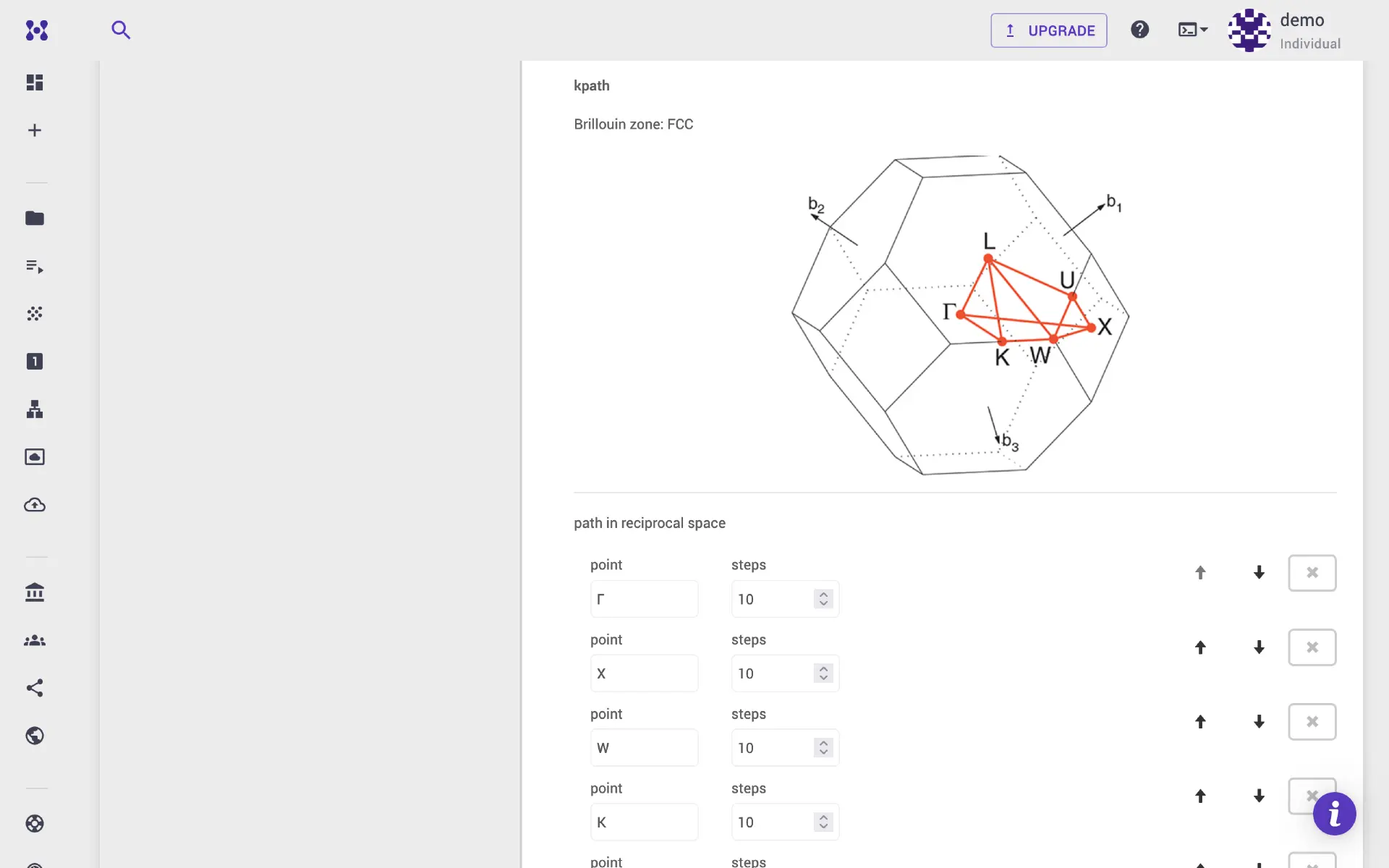
Add a unit for bands calculation and select the pw_bands_magn template. This performs an NSCF calculation along the specified k-path. The desired k-path can be set via the Important Settings tab.
2.3. Configure bands.x post-processing
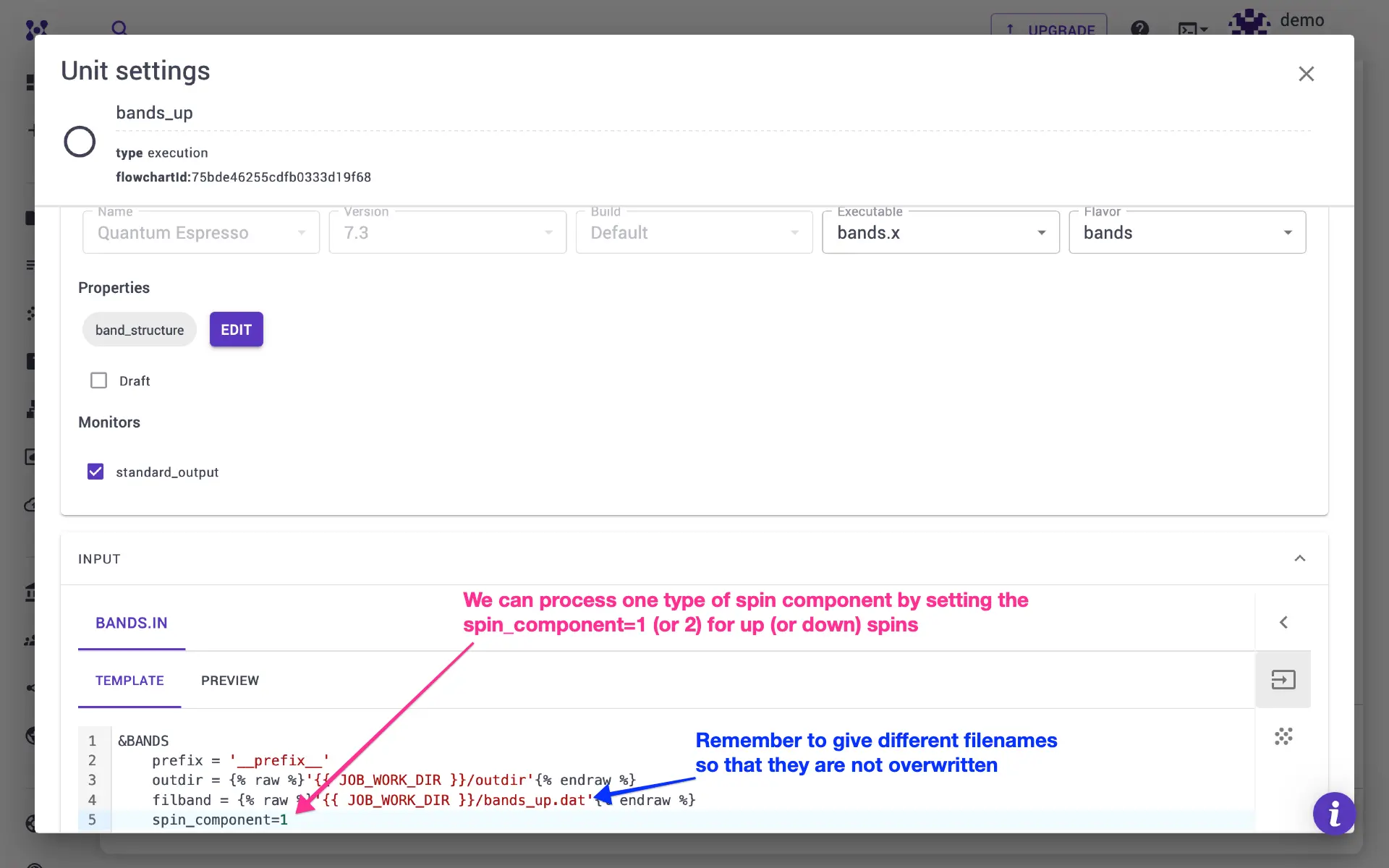
This optional step processes the calculated band structure data. In order to process a single spin channel, set spin_component = 1 for up spin or spin_component = 2 for down spin. Two units are added — one for up and one for down. The filbands filenames should be set to different values so that outputs are not overwritten. Each unit should be given a distinct name.
3. Configure the job
Navigate to the jobs page and create a new job. Import the material and workflow, then navigate to the Important Settings tab under the workflow.
Set the starting_magnetization values. For an antiferromagnetic calculation, specify starting_magnetization for the Fe1 site as -1 and for the Fe2 site as +1.
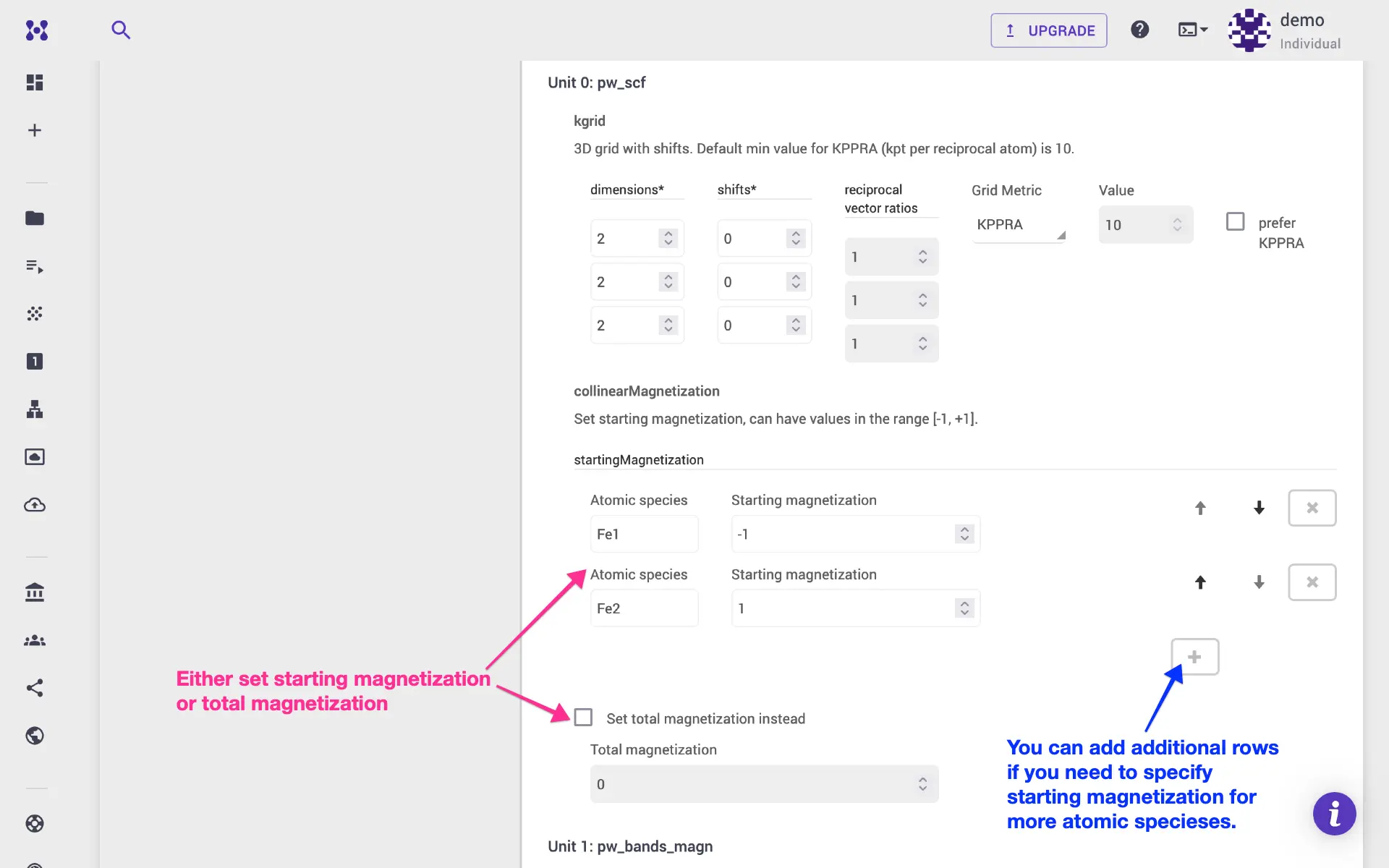
Scroll down to the bands calculation unit. The starting_magnetization should be set to the same values as the SCF step.
Magnetization in NSCF calculations
The starting_magnetization may not be used in NSCF/bands calculations. Consult the Quantum ESPRESSO documentation for details. Setting it to the same value as the SCF step is a safe default.
Alternatively, total_magnetization can be specified instead. The compute parameters can be adjusted in the Compute tab. The job is then ready for submission.
4. Examine the results
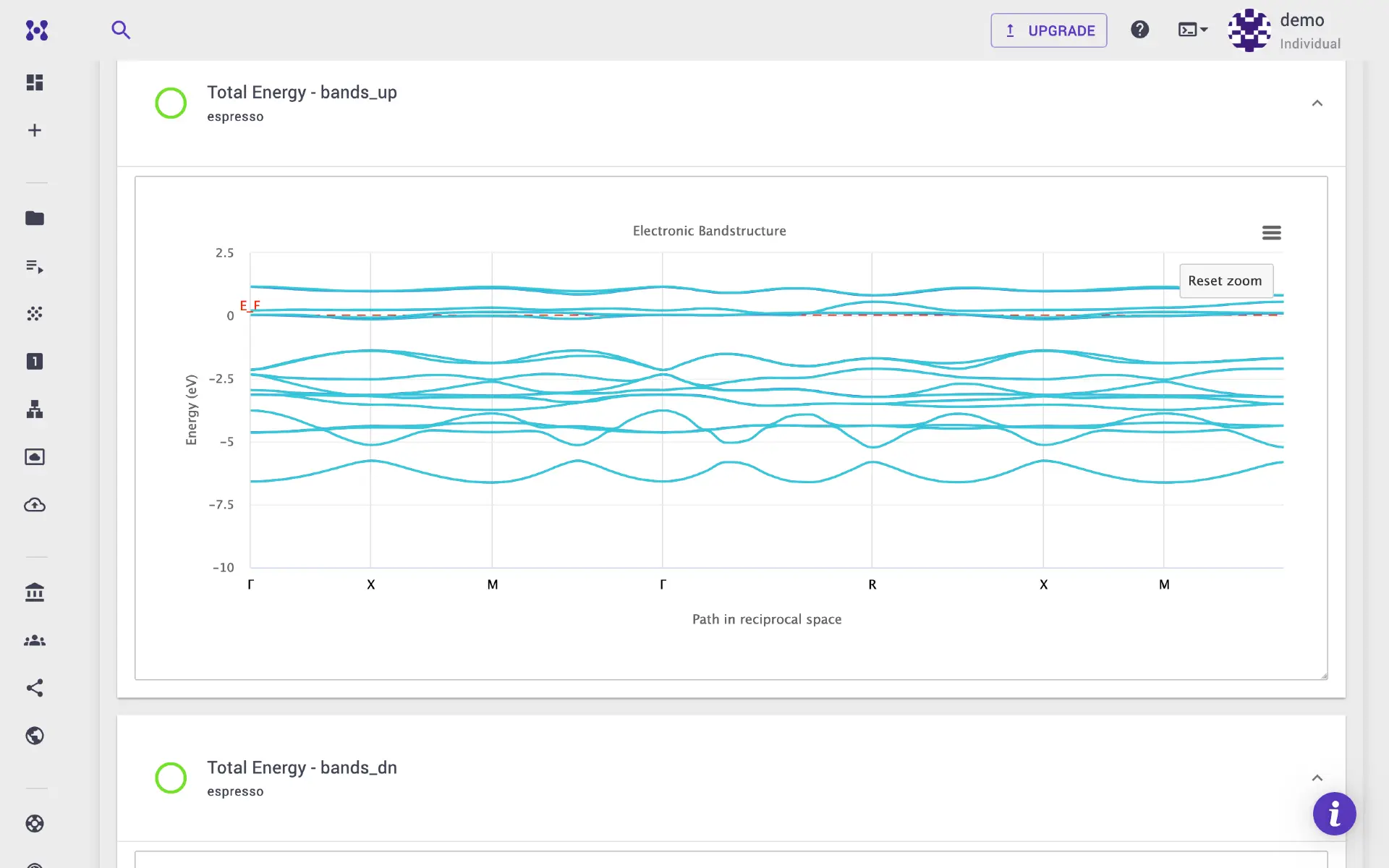
Once the job completes, the band structure plots are displayed in the Results tab. All input and output files can be found in the Files tab.
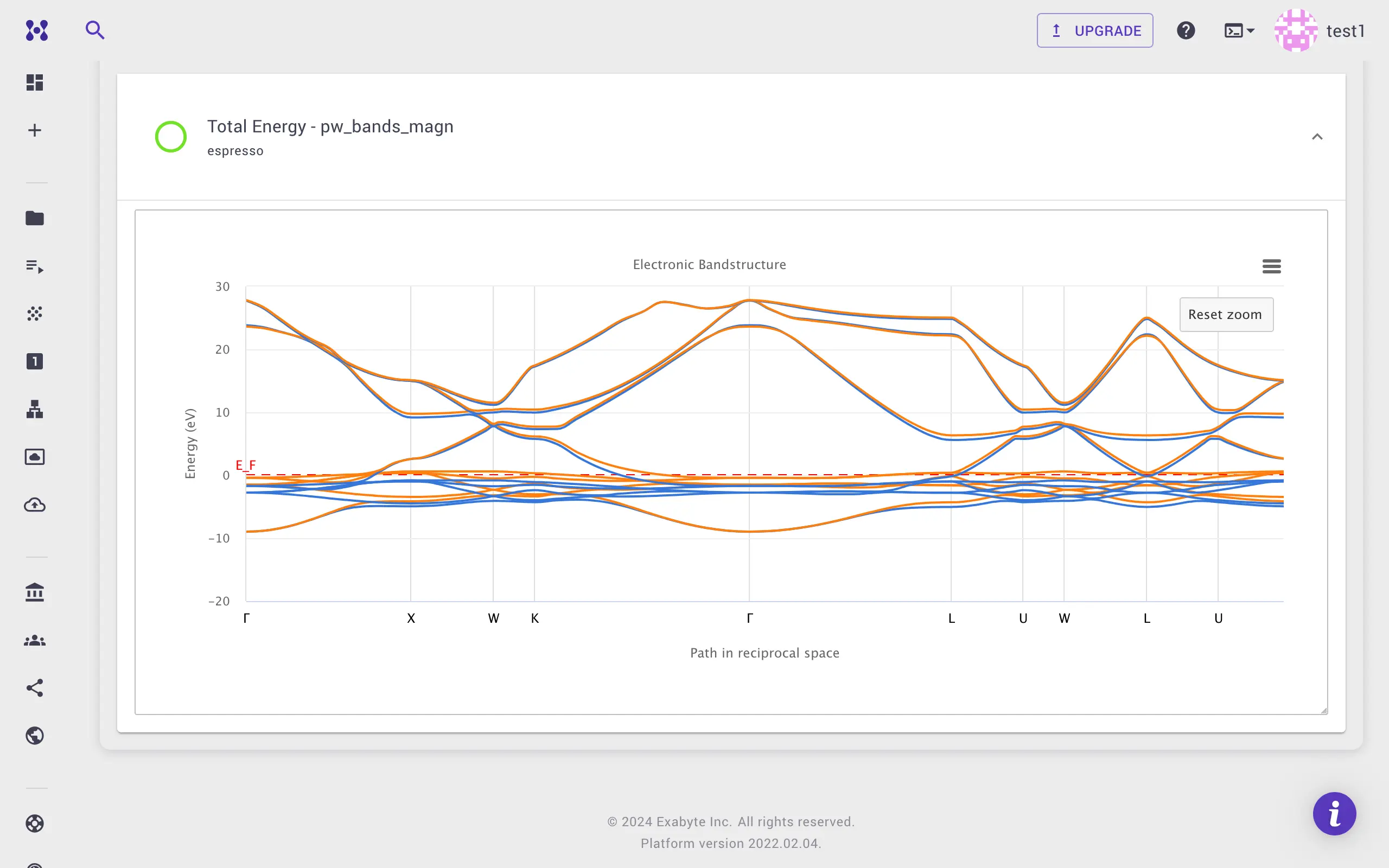
Spin-resolved plot (platform version 2024.8.22+)
Both spin components are shown in the same plot with different colors. The plot below shows the spin-resolved band structure of nickel, where blue and orange represent up and down spin components, respectively.
5. Video walkthrough
The animation below demonstrates the full calculation workflow.