Authentication in JupyterLite
Overview
When working with JupyterLite notebooks that interact with the Mat3ra platform API, you need to authenticate to access your account data, materials, and computational resources. The authentication method depends on how you're accessing JupyterLite.
Authentication Methods
1. JupyterLite from Platform
When you launch JupyterLite from the Platform using the JupyterLite Session, authentication happens automatically. The platform passes your credentials through the data_from_host variable, which includes:
- Account ID
- Authentication token
- Organization ID
- Available clusters
No additional authentication steps are required in this mode.
2. Standalone Notebooks
When running notebooks outside the Platform (e.g., local IDE, jupyterlite.mat3ra.com), you will be authenticated using the OIDC (OpenID Connect) device flow.
OIDC Device Flow Authentication
Step-by-Step Authentication Process
Step 1: Run Authentication Code
In your notebook, import and run the authentication function:
from utils.auth import authenticate

await authenticate()
The process of authentication in JupyterLite notebook:
Step 2: View User Code in Notebook
The notebook will display an "Authentication Required" message with a unique user code:
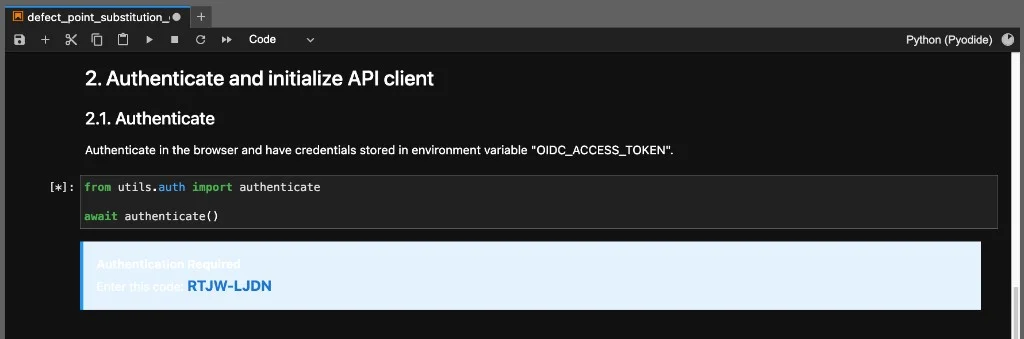
The code (e.g., "RTJW-LJDN") is displayed prominently. Keep this visible as you'll need to verify it in the browser.
Step 3: Browser Opens Automatically
A new browser window or tab will open automatically, taking you to the Mat3ra authentication page:
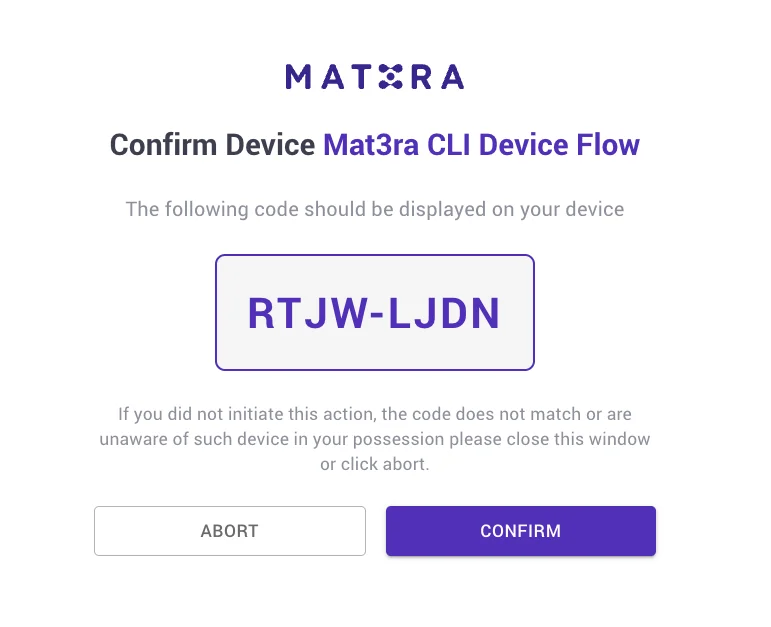
This page shows: - The application requesting access ("Mat3ra CLI Device Flow") - Your account information - The permissions being requested - Options to CANCEL or CONFIRM
Step 4: Sign In (If Needed)
If you're not already signed in, you'll see a sign-in page:
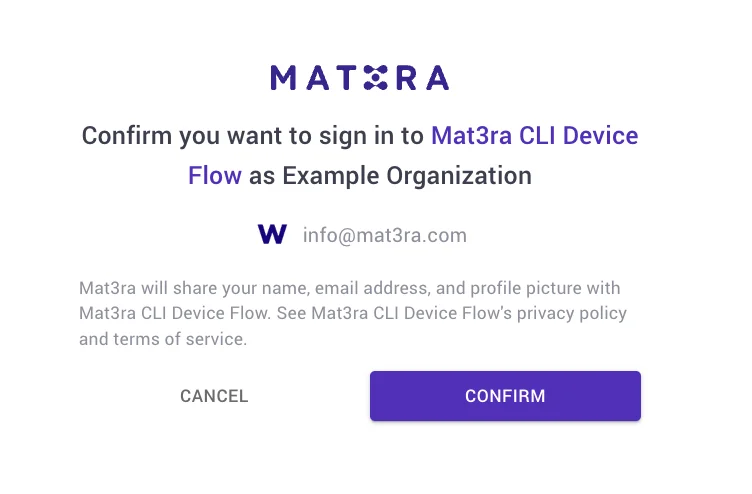
Confirm that you want to sign in to Mat3ra CLI Device Flow with your account.
Step 5: Confirm Device
Click the CONFIRM button to authorize the notebook to access your account.
Step 6: Success Confirmation
After confirming, you'll see a success message:
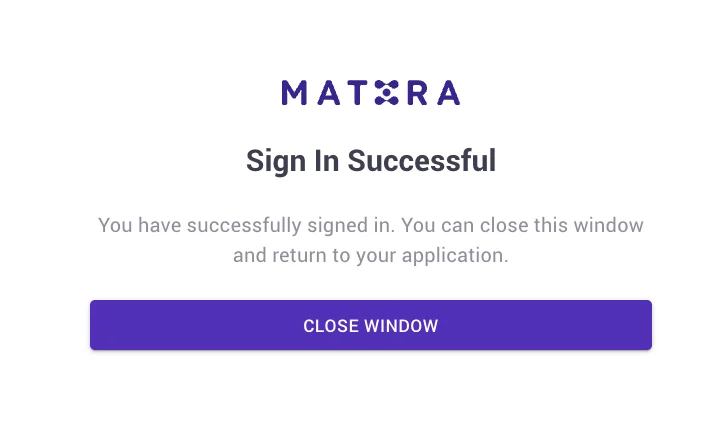
You can now close this browser window and return to your notebook.
Step 7: Continue in Notebook
Back in your notebook, the authentication process completes automatically. Your access tokens are now stored in environment variables, and you can proceed with API calls.
Complete Code Example
Here's a complete example showing authentication and basic API usage:
# 1. Authenticate
from utils.auth import authenticate
await authenticate()

# 2. Initialize API client
from mat3ra.api_client import APIClient
client = APIClient.authenticate()

# 3. Use the API
projects = client.projects.list({"isDefault": True})
print(f"Found {len(projects)} project(s)")
Troubleshooting
Browser Window Doesn't Open
If the browser window doesn't open automatically:
- Check if popup blockers are preventing the window from opening
- Look for the verification URL in the notebook output
- Manually copy and paste the URL into your browser
"Authorization Pending" Message
If the notebook keeps showing "authorization pending":
- Make sure you clicked CONFIRM in the browser
- Check that you're signed in to the correct account
- Verify the user code matches between notebook and browser
Technical Details
Token Storage
Authentication tokens are stored in environment variables:
OIDC_ACCESS_TOKEN: Used for API requestsOIDC_REFRESH_TOKEN: Used to obtain new access tokens when they expire
These tokens persist for the duration of your notebook session but are not saved to disk.
Security Considerations
- Tokens are session-specific and expire after a period of inactivity
- Never share your authentication tokens or commit them to version control
- Always authenticate in a secure environment
- The device flow ensures your password is never exposed to the notebook
Token Expiration
Access tokens expire after 30 minutes. In that case, you need to restart the kernel and Run All Cells again (save and use ids for materials, jobs or other entities to avoid losing references).
Or adjust the authenticate function to force re-authentication upon re-running of that cell:
await authenticate(force=True)
API Client Configuration
The authentication process automatically configures the API client with:
- Base URL for the Mat3ra API
- OIDC endpoint URLs
- Client ID and scope
- Token refresh mechanism
Related Documentation
- Accessing JupyterLite - How to launch JupyterLite
- Data Exchange - Working with materials data
- REST API Authentication - Alternative authentication for direct API calls
- API Client - Using the Python API client